Linux Root Filesystem 100% Full Overnight: How to Find and Fix the Cause(Interview Scenario 2)
Introduction
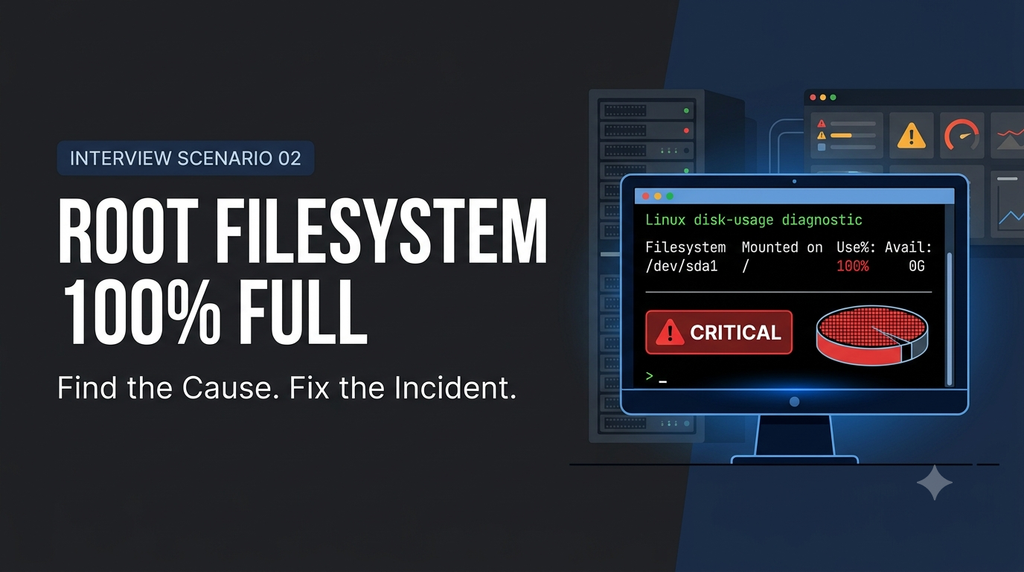
Disk usage was normal yesterday, but today your Linux root filesystem (/) is at 100%, and applications are starting to fail.
What would you do?
This is a common production incident that Linux and Production Support Engineers encounter, and it’s also a frequently discussed scenario in Linux troubleshooting interviews.
The challenge isn’t simply finding large files and deleting them. You need to identify what caused the sudden increase in disk usage, understand its impact on running applications, recover disk space safely, and prevent the issue from happening again.
In this scenario, we’ll approach the problem just as we would in a real production environment, breaking the investigation into practical troubleshooting steps, Linux commands, and possible root causes.
Let’s see how you would investigate this issue and explain your approach in a Linux Production Support interview.
Scenario
Yesterday, the root filesystem (/) was operating normally, with around 65% disk utilization.
Today, monitoring triggers a critical alert:
- Filesystem:
/ - Disk Usage: 100%
- Available Space: 0
- Application Status: Running, but users are reporting intermittent issues.
- Recent Changes: No planned deployment or major changes reported.
You’re responsible for investigating and resolving the issue.
Before moving ahead let’s think for few moments and tell me in comments what’s your approach to resolve this.
Troubleshooting
Since we know the disk is full, our immediate objective is to resolve the critical alert by freeing up disk space. Before taking any action, let’s start with the information currently available:
- Root filesystem (
/) is at 100% utilization. - Available disk space is 0.
- Users are experiencing intermittent application issues.
We will use these observations as our starting point and investigate what is consuming the disk space before deciding on the appropriate corrective action.
TIP
Typical signs when / fills up:
1. Applications fail to write logs or temp files
2. Services crash or refuse to start
3. Errors such as No space left on device
4. SSH logins or package installs fail
5. Monitoring raises a disk usage alert
So I suggest do not delete anything without any evidence. Let’s try to solve this issue step by step
Step 1 : Find out which filesystem is full
I know some of you might be wondering: We already know that the root filesystem is full, so why are we checking which filesystem is running out of space again?
The reason is simple: in production troubleshooting, we should never rely solely on assumptions or previously reported information. We’ll verify everything from the beginning to ensure our findings are accurate and avoid any confusion during the investigation.
$ df -h
Filesystem      Size  Used Avail Use% Mounted on
/dev/sda1        50G   50G     0 100% /
tmpfs           2.0G     0  2.0G   0% /dev/shm
/dev/sdb1 100G 40G 60G 40% /dataNext, check inode utilization using below command
$ df -i /
Filesystem      Inodes  IUsed  IFree IUse% Mounted on
/dev/sda1 3276800 1200000 2076800 37% /Why do we need this check?
Disk space and inodes are two different resources. A filesystem can run out of inodes even when some disk space is still available.
If inode utilization reaches 100%, applications may encounter No space left on device errors even though df -h shows available capacity.
Till we have below observation
- The root filesystem is at 100% disk utilization.
- Inode utilization is only 37%, so inode exhaustion is not the immediate problem.
- We can now investigate which directories are consuming the available disk space.
Step 2 : Identify the top disk consumers
We now find the top disk consumers under our root directory.
#here we are checking for top 4 disk consumer under / directory.
$ du -xh / --max-depth=1 2>/dev/null | sort -rh | head -4
50G     /
38G     /var
6.2G    /usr
3.1G /optNOTE : You can use any suitable command to find this list
Now we can see /var is consuming highest space. so drill down on /var.
Step 3: Drill down into the directory consuming the most space
$ du -xh /var --max-depth=2 2>/dev/null | sort -rh | head -5
38G     /var
35G     /var/log
34G     /var/log/myapp
1.5G    /var/cache
800M /var/libNOTE : Repeat above command until you reach the actual files.
Now we have narrowed down the problem to /var/log/myapp.
The next step is to identify the individual files consuming the space.
Troubleshooting tip
Repeat the du command with a deeper directory path whenever necessary. This helps you narrow down the investigation without scanning unrelated directories.
Step 4 : Find the large files
Now find the large files inside /var/log/myapp. I mostly use below command to get this data
$ find /var/log/myapp -xdev -type f -size +500M -exec ls -lh {} \; 2>/dev/null
-rw-r--r-- 1 appuser appuser 34G Nov 16 09:42 /var/log/myapp/app.log
-rw-r--r-- 1 appuser appuser 1.2G Nov 15 23:59 /var/log/myapp/app.log.1The output identifies app.log as the largest file, consuming approximately 34 GB.
Before deciding how to recover the space, we need to understand whether this file is actively growing.
Check its modification time:
$ stat /var/log/myapp/app.logAlso, check whether the application is continuing to write to it:
$ sudo lsof /var/log/myapp/app.logIf the file is actively being written, we should investigate the application generating the logs before taking corrective action.
Important: A large log file is not necessarily the root cause. It may be a symptom of repeated application errors, excessive debug logging, or a log rotation failure.
Now we can clearly see that the app.log file is consuming 34 GB of disk space. So, what would you do next to resolve this issue?
Would you immediately run a delete command to remove this file? If that’s your approach, hold on! You might lose points in your interview right away.
Let’s first understand why deleting this file directly could be a bad idea and what the correct approach should be in a production environment.
Solution and Fixes
Before clearing space let’s take few minutes to check why log file is filling quickly. Possible cause can be one of below ones.
- Crash loop or debug mode left on
- logrotate failed or was never configured
- Application crashes
- Deleted file still held open by a process
Investigate deleted files still held open by processes
Sometimes you may notice that df -h reports 100% disk utilization, but the total space reported by du is significantly lower.
One possible reason is that a process is still holding an open file descriptor for a file that has already been deleted.
When a file is deleted using rm, its directory entry is removed. However, if a running process still has the file open, the filesystem cannot release its allocated blocks until the process closes that file descriptor.
To identify these files, run:
$ sudo lsof +L1What to look for:
- Large files marked as deleted.
- The process name and PID holding the file.
- The file descriptor associated with the deleted file.
If you identify a large deleted log file, investigate the owning process and determine whether it can be safely restarted or instructed to close the file.
Once the process releases the file descriptor, the filesystem can reclaim the space.
Interview Tip
If df shows significantly more disk usage than du, don’t immediately assume that the filesystem has a hidden directory. Check for deleted-but-open files using
lsof +L1.
Recover disk space safely
Once we identify the file responsible for consuming disk space and confirm that it is safe to clear, we can recover the space.
In our scenario, app.log is consuming 34 GB and is actively being written by the application.
Instead of removing the active log file, we can truncate it:
$ sudo truncate -s 0 /var/log/myapp/app.logThis clears the file contents while keeping the file itself available for the application to continue writing.
Before running this command in production:
- Confirm that the file belongs to the affected application.
- Preserve any logs required for incident investigation, auditing, or RCA.
- Confirm that truncating the file will not violate retention requirements.
- Check with the application or service owner and obtain the necessary approval.
- Ensure that you have identified the process generating excessive logs.
After truncation, verify the recovered space:
$ df -h /You can also verify the file size:
$ ls -lh /var/log/myapp/app.logImportant: Truncating the file only addresses the immediate disk-space problem. If the application continues generating excessive logs, the filesystem may become full again.
Therefore, we must investigate the logging behavior and implement preventive measures before considering the incident fully resolved.nning df -h / command and found space is clear and you have some free space on root filesystem.
Prevent the issue using logrotate
Finding and truncating a large log file resolves the immediate disk-space problem, but we also need to prevent the same issue from happening again.
Linux systems commonly use logrotate to manage application and system logs.
It supports log rotation, compression, retention, and size-based rotation.
For example, we can create a configuration file:
sudo vi /etc/logrotate.d/myappAdd the following configuration:
/var/log/myapp/*.log {
    daily
    size 500M
    rotate 5
    compress
    missingok
    notifempty
    copytruncate
}What do these options mean?
| Option | Purpose |
|---|---|
| daily | Check for rotation daily |
| size 500M | Rotate when the file exceeds 500 MB |
| rotate 5 | Retain five old rotated files |
| compress | Compress rotated files |
| missingok | Don’t report an error if the log is missing |
| notifempty | Skip empty log files |
| copytruncate | Copy the log and truncate the original file |
Important: size takes precedence over the normal time-based interval when both are configured. If you want daily rotation with an additional size threshold, use maxsize instead of size.
For example:
daily
maxsize 500MYou should also verify that the application can continue writing to its log after rotation. copytruncate has a small window in which log entries can be lost, so it isn’t suitable for every application. A service-supported reopen/reload mechanism is often preferable.
Before relying on the configuration, test it:
$ sudo logrotate -d /etc/logrotate.d/myappThe -d option performs a debug run without actually rotating the logs.
Finally, monitor filesystem utilization and configure alerts before the root filesystem reaches critical levels.
This helps prevent a similar incident from affecting production applications again.
Common Mistakes and Interview Takeaways
Now that we’ve resolved the issue and freed up some disk space, let’s discuss some common troubleshooting mistakes and key interview takeaways that will help you handle similar scenarios confidently in your next interview.
Common mistakes
Here are some common mistakes engineers should avoid while troubleshooting a full root filesystem:
- Deleting random directories without understanding their purpose.
- Running rm on an active log file and assuming disk space will immediately be released.
- Ignoring inode utilization when investigating No space left on device errors.
- Forgetting to check deleted-but-open files using lsof +L1.
- Truncating logs without preserving important incident or audit information.
- Freeing disk space without identifying the process generating excessive logs.
- Assuming logrotate is configured and working without verifying it.
- Fixing the immediate issue without implementing preventive monitoring and alerting.
Interview takeaways
When answering this scenario in an interview, demonstrate a systematic troubleshooting approach:
- Start by verifying filesystem and inode utilization using df -h and df -i.
- Identify the largest directories using du and drill down until you locate the responsible files.
- Investigate the process generating excessive logs instead of immediately deleting large files.
- Explain the difference between deleting a file and truncating an active log file.
- Mention deleted-but-open files and how lsof +L1 helps identify them.
- Explain how logrotate, retention policies, and disk-usage alerts prevent recurrence.
- Always verify recovered disk space and application health after applying the fix.
Follow Up Interview Questions
1. Why can a Linux log file grow suddenly?
Common reasons include application crash loops, excessive debug logging, repeated exceptions, unexpected traffic, or log rotation failure.
2. How do you check inode utilization?
Use:
$ df -i /This displays inode usage for the root filesystem.
3. Why does df show 100% utilization while du reports less disk usage?
One possible reason is that deleted files are still held open by running processes.
Use:
$ sudo lsof +L1to investigate deleted-but-open files.
4. What is the difference between deleting and truncating an active log file?
Deleting removes the directory entry, but a process holding the file open may continue consuming disk space. Truncating clears the file contents while keeping the file available at its existing path.
5. How would you prevent log files from consuming the entire filesystem?
Configure logrotate, appropriate retention policies, compression, size-based rotation, and filesystem utilization alerts.
6. What would you do if the root filesystem fills up again immediately after truncating a log?
Investigate the application process generating the logs, check for repeated errors or crash loops, and identify why the logging volume is increasing. Also verify that log rotation and monitoring are working correctly.
7. How would you verify that the issue is resolved?
Check filesystem utilization:
$ df -h /Check inode utilization:
$ df -i /Verify application health, inspect recent logs, and confirm that disk utilization is no longer increasing unexpectedly.
Conclusion
When the Linux root filesystem (/) suddenly reaches 100% utilization, don’t rush into deleting files.
Follow a systematic troubleshooting approach: verify filesystem and inode utilization, identify the largest directories, locate the files consuming space, and investigate the processes responsible for the growth.
If you discover an active log file consuming excessive space, recover it carefully while preserving important diagnostic information. Also investigate deleted-but-open files when df and du report different usage.
Remember, resolving the immediate disk-space issue is only half the job. A production engineer must also identify the root cause, configure appropriate log rotation and retention policies, and implement monitoring alerts to prevent the same incident from happening again.
That’s the difference between simply freeing disk space and resolving a production incident.
Take Your Linux Troubleshooting Skills Further
Want to practice more real-world Linux troubleshooting scenarios and prepare for production support or Linux interviews?
Check out my Linux Scenario-Based Interview Preparation Kit, designed to help you move beyond theoretical questions and develop practical troubleshooting skills.
Inside the complete kit, you’ll find scenario-based questions covering real-world Linux problems, practical investigation approaches and detailed explanations.
Get a free sample chapter before purchasing to see the content and approach for yourself.
👉 Explore the complete Linux Interview Preparation Kit: Ultimate Linux Interview Survival Kit
👉 Download the free sample: [FREE] Linux Scenario-Based Interview Kit