1. Introduction
Securing your AWS cloud environment is critical in today’s digital landscape, where cyber threats are constantly evolving. Identity and Access Management (IAM) serves as the foundation for safeguarding your AWS resources, ensuring that only authorized users and applications can access sensitive data.
In this blog, we’ll explore 6 powerful IAM best practices that enhance security, minimize risks, and help maintain compliance. From enforcing the principle of least privilege to leveraging multi-factor authentication (MFA) and continuous monitoring, these strategies will strengthen your AWS security posture.
Implementing these IAM best practices will help you proactively defend against unauthorized access and potential security breaches.
Let’s begin our journey toward securing your AWS Cloud, ensuring robust protection, best practices, and enhanced security for your infrastructure and data
2. AWS Identity and Access Management (IAM)
Before diving into the best practices for IAM, it’s essential to understand AWS IAM and its critical role in security. IAM helps manage user access, permissions, and authentication, ensuring secure and controlled access to AWS resources. Let’s explore about IAM before moving on to best practices.
2.1 Overview of AWS IAM and its role in cloud security
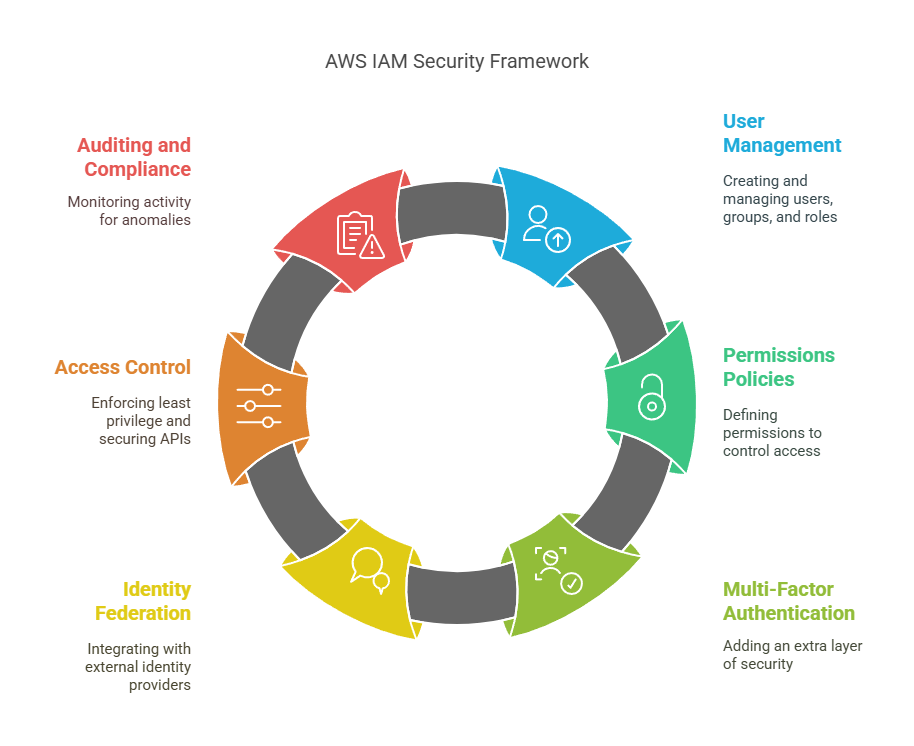
AWS Identity and Access Management (IAM) is a core security service that allows organizations to manage access to AWS resources securely. Administrators can create and manage users, groups, and roles, defining permissions via policies to guarantee that only authorized bodies are able to access certain services and data. IAM ensures cloud security through the enforcement of the principle of least privilege, reducing the possibility of unauthorized access and data breaches. Multi-Factor Authentication (MFA), identity federation, and fine-grained access control are some of the features that add to the security.
IAM also enables auditing and compliance through AWS CloudTrail, enabling organizations to monitor user activity and identify anomalies. By using IAM best practices, organizations can enhance their security stance, safeguard sensitive workloads, and ensure regulatory compliance. From controlling user permissions to securing API access and integrating with external identity providers, IAM is the foundation of access control in AWS cloud environments.
2.2 Importance of IAM Best Practices in Preventing Unauthorized Access
Adoption of IAM best practices is necessary to avoid unauthorized access and protect AWS environments from potential attacks. Without the control of access, attackers or even internal users with overly permissive privileges can access sensitive data and mission-critical workloads. IAM best practices like enforcing the principle of least privilege, employing Multi-Factor Authentication (MFA), and enforcing permissions on a regular basis minimize security threats. Moreover, tracking access logs using AWS CloudTrail allows organizations to identify malicious activity and react quickly to possible breaches.
By implementing strong IAM policies, companies can block privilege escalation, unauthorized API calls, and unintentional data disclosure. These processes not only increase security but also help maintain industry compliance and best practices. In a world where cloud security threats are continually on the move, adhering to IAM best practices is an active strategy for protecting AWS resources and having control over who has access to mission-critical infrastructure and data.
2.3 Common IAM misconfigurations that lead to security breaches
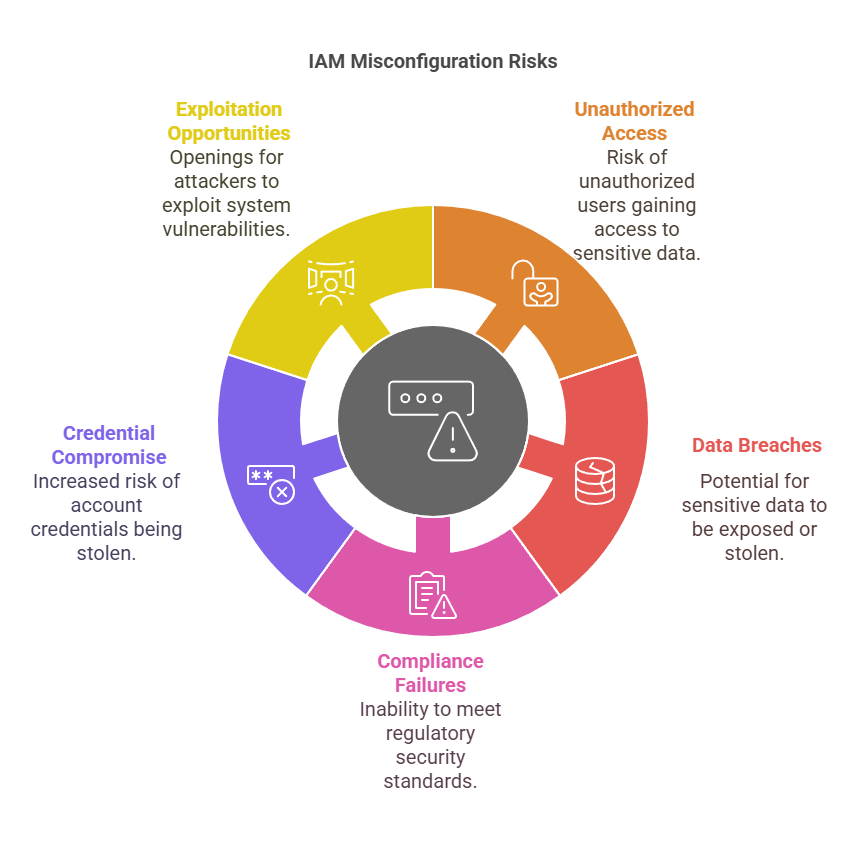
Typical IAM misconfigurations can introduce errors that are risky to security, resulting in unauthorized access, data breaches, and compliance failures. The most common mistake is granting too much permission, contravening the least privilege principle and subjecting important resources to possible abuse. Misconfigured IAM policies like overly permissive roles or wildcard (“*”) permissions provide an attacker with a window of opportunity to access sensitive data. The absence of Multi-Factor Authentication (MFA) on privileged accounts means higher exposure to credential compromise.
In addition to that, insecurely configured identity federation poses risks of unauthorized access if it’s not properly locked down. Not monitoring and auditing IAM activities by using AWS CloudTrail leaves attacks undetected. Also, not regularly reviewing and deactivating inactive IAM users or stale access keys can expose an environment to being exploited. Fixing these IAM misconfigurations is important for enhancing AWS security and reducing the risk of breaches.
3. Identity and Access Management Best Practices
Now, let us discuss the best practices for AWS IAM to tighten security and restrict unauthorized access. Adopting these measures ensures improved access control, reduces risks, and secures your AWS environment.
3.1 Enforce Least Privilege Access for All Users and Roles
Enforcing least privilege access ensures that users and roles have only the minimum permissions needed to perform their tasks, reducing security risks. By creating fine-grained IAM policies, using customer-managed policies for better control, and regularly reviewing access, organizations can strengthen AWS security and prevent unauthorized access to critical resources. Let see them in details
3.1.1 The Principle of Least Privilege (PoLP) Explained
The Principle of Least Privilege (PoLP) is a basic security principle that provides users, applications, and services with just the minimum privilege required to get their job done. By limiting access, PoLP minimizes the risk of accidental data leak, insider threat, and outsider attacks. Use of this principle in AWS IAM stops unauthorized change to key resources, improving general cloud security.
3.1.2 How to Create Fine-Grained Permissions Using IAM Policies
Follow these steps to create fine-grained IAM policies in AWS:
Step 1: Sign in to AWS IAM Console
- Go to the AWS IAM Console.
- Navigate to Policies in the left menu.
Step 2: Create a New IAM Policy
- Click Create policy.
- You can define a custom policy using the JSON tab (or use the Visual editor for a guided setup).
Step 3: Define Fine-Grained Permissions
- In the JSON editor, specify the actions, resources, and conditions
- Example: To allow only S3 bucket read access, use:
{
  "Version": "2012-10-17",
  "Statement": [
    {
      "Effect": "Allow",
      "Action": ["s3:GetObject"],
      "Resource": ["arn:aws:s3:::example-bucket/*"]
    }
  ]
}
2. Adjust the policy to grant only necessary permissions (avoid using "Action": "*", which grants excessive access).
3. Click Next to review the policy.
Step 4: Name and Create the Policy
- Enter a policy name and an optional description.
- Click Create policy to save it.
Step 5: Attach the Policy to a User, Group, or Role
- Navigate to Users, Groups, or Roles in the IAM Console.
- Select the entity you want to assign the policy to.
- Click Attach policies, search for your custom policy, and select it.
- Click Attach policy to apply the changes.
By following these steps, you can enforce fine-grained access control, ensuring users and roles have only the permissions they need.
3.1.3 Using IAM Managed Policies vs. Customer-Managed Policies
| Feature | IAM Managed Policies | Customer-Managed Policies |
|---|---|---|
| Definition | Predefined policies created and maintained by AWS. | Custom policies created and managed by users. |
| Control & Customization | Limited customization; AWS defines the permissions. | Full control; users define permissions based on needs. |
| Ease of Use | Easy to use with pre-configured best practices. | Requires more effort to define specific permissions. |
| Security & Compliance | May include unnecessary permissions, increasing risk. | Tailored to meet security and compliance requirements. |
| Updates & Maintenance | AWS automatically updates policies when needed. | Users must manually update policies as requirements change. |
| Best Use Case | Suitable for general use cases with standard permissions. | Ideal for organizations needing strict access control. |
| Flexibility | Less flexible, as permissions are predefined. | Highly flexible, allowing fine-grained permission control. |
3.2 Enable Multi-Factor Authentication (MFA) for All IAM Users
Enabling Multi-Factor Authentication (MFA) provides an additional layer of security for IAM user accounts, minimizing the risk of access by unauthorized users. Through the requirement of a second factor of authentication, including a one-time password from a mobile phone, MFA prevents credential compromise and strengthens AWS security for high-risk resources and operations. Now let’s see why MFA is essential and how to set up MFA policies in AWS.
3.2.1 Why MFA is essential for account protection
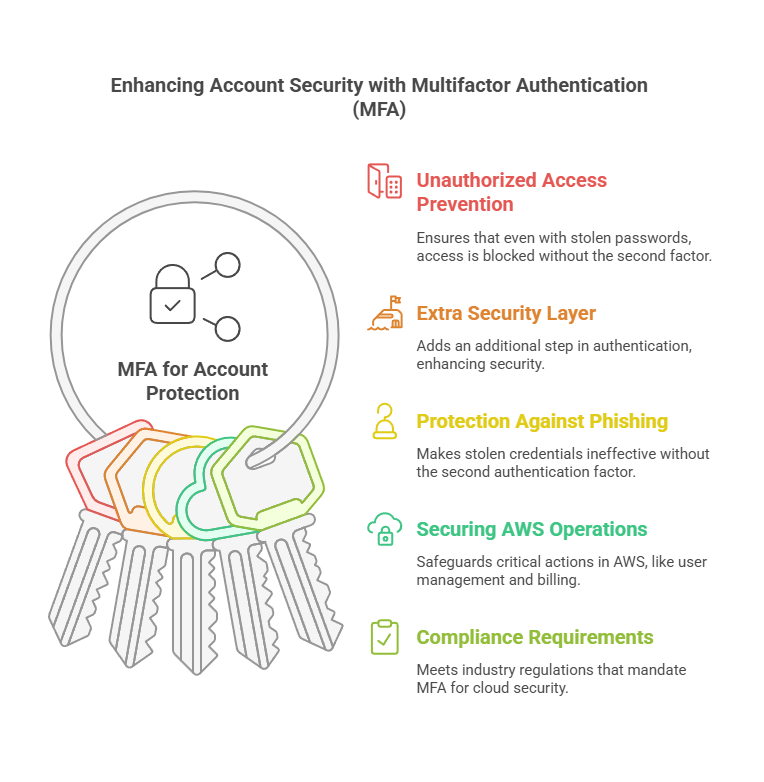
- Prevents Unauthorized Access – Even if an attacker steals a password, they cannot log in without the second authentication factor.
- Adds an Extra Security Layer – MFA requires an additional step (such as a mobile app or hardware key), making it harder for hackers to breach accounts.
- Protects Against Phishing and Credential Theft – Stolen credentials alone are useless without the second authentication factor.
- Secures Sensitive AWS Operations – MFA helps protect critical actions like IAM user management and billing access.
- Meets Compliance Requirements – Many industry regulations mandate MFA for cloud security, ensuring compliance with best practices.
- Easy to Implement – AWS supports MFA via mobile apps, security keys, or SMS, making deployment simple for organizations of any size.
3.2.2 Enforcing MFA for Root and IAM Users
- Protecting Root User Access – The root user has full control over the AWS account, making it a high-risk target. Enabling MFA ensures that even if the password is compromised, unauthorized access is prevented by requiring a second authentication factor.
- Enhancing IAM User Security – IAM users performing critical tasks should have MFA enabled to prevent unauthorized access. AWS supports MFA through virtual devices, hardware tokens, and SMS, adding an extra security layer to protect against credential theft and account breaches.
3.2.3 How to Set Up MFA for IAM Users Using AWS Console and AWS CLI
Method 1: Using AWS Console
Step 1: Sign in to AWS Management Console
- Go to the AWS IAM Console: AWS IAM.
- In the left panel, click on Users and select the IAM user for whom you want to enable MFA.
Step 2: Enable MFA for the User
- Click on the Security credentials tab.
- Under the Multi-Factor Authentication (MFA) section, click Assign MFA device.
- Choose the type of MFA device:
- Virtual MFA device (e.g., Google Authenticator, Authy)
- Hardware MFA device (e.g., YubiKey)
- SMS-based MFA
Step 3: Configure the MFA Device
- If using a virtual MFA device:
- Open the authenticator app on your mobile device.
- Scan the QR code provided by AWS.
- Enter the two consecutive MFA codes from the app.
- Click Assign MFA to complete the setup.
Step 4: Test and Enforce MFA Policy
- Log out and attempt to sign in again to verify MFA functionality.
- To enforce MFA for users, create an IAM policy that requires MFA authentication before granting access.
Method 2: Using AWS CLI
Step 1: List IAM Users
Run the following command to list IAM users:
aws iam list-users
Step 2: Create and Assign an MFA Device
- Assign a virtual MFA device to a user:
aws iam create-virtual-mfa-device --virtual-mfa-device-name MFAUser --outfile QRCode.png --bootstrap-method QRCodePNG
- Activate MFA for the user by associating the device:
(ReplaceYourIAMUserwith the IAM username and enter two consecutive MFA codes from your authenticator app.)
aws iam enable-mfa-device --user-name YourIAMUser --serial-number arn:aws:iam::123456789012:mfa/MFAUser --authentication-code-1 123456 --authentication-code-2 456789
Step 3: Enforce MFA Policy for IAM Users
Create a policy that forces users to authenticate with MFA before accessing AWS services: (sample shown below)
{
    "Version": "2012-10-17",
    "Statement": [
        {
            "Effect": "Deny",
            "Action": "*",
            "Resource": "*",
            "Condition": {
                "BoolIfExists": {
                    "aws:MultiFactorAuthPresent": "false"
                }
            }
        }
    ]
}
Attach this policy to IAM users or groups to enforce MFA.
By following these steps, you can effectively secure AWS accounts by enforcing MFA for IAM users and the root account.
3.3 Avoid Using the Root User and Create IAM Roles for Administration
The root user on AWS has unlimited access to all services and resources and thus is a high-risk target for attacks. For added security, do not use the root user for normal operations and instead configure IAM roles with administrative privileges. IAM roles enable you to grant individual privileges to users and services while abiding by the principle of least privilege.
This method reduces security threats, avoids accidental misconfigurations, and provides improved access control. Also, making Multi-Factor Authentication (MFA) available for the root user and tracking its use adds extra security to AWS account security. Utilizing IAM roles in place of the root user is a secure best practice for AWS management.
3.3.1 Steps to Set Up IAM Roles with Elevated Permissions in AWS
- Go to the AWS IAM Console: AWS IAM.
- Click on Roles in the left sidebar, then click Create Role.
- Select AWS Service if the role is for AWS services (e.g., EC2, Lambda).
- Select Another AWS Account if the role is for cross-account access.
- Select Web Identity or SAML if integrating with an external identity provider.
- Click Next to proceed.
- Search for and attach predefined AWS managed policies (e.g.,
AdministratorAccessfor full admin privileges orPowerUserAccessfor limited admin control). - For custom permissions, click Create Policy, define required access in JSON format, and attach it to the role. (We already seen Json example in above methods)
- Enter a Role Name and optional Description to specify its purpose. Click Create Role to finalize the setup.
- Navigate to Users in the IAM console. Select the user, click Add Permissions, and choose Attach Existing Policies Directly.
- Search for the created IAM role, attach it, and click Save Changes.
By following these steps, you can securely manage AWS administrative access while avoiding security risks associated with using the root user.
3.3.2 How to Monitor and Restrict Root Account Activity
Monitoring and restricting root account activity is crucial for maintaining AWS security. Since the root user has unrestricted access, any unauthorized use can lead to severe security breaches. To track activity, enable AWS CloudTrail to log all root user actions and set up Amazon CloudWatch Alarms for unusual behavior. Restrict root account usage by creating IAM roles with administrative privileges for daily operations. Additionally, enforce Multi-Factor Authentication (MFA) and remove unnecessary root access keys to prevent unauthorized logins. Regularly review root account usage and implement strict security policies to minimize risks and ensure account protection.
3.4 Regularly Review and Rotate IAM Credentials
Constant IAM credential review and rotation prevent unauthorized access and security violations. Regularly audit IAM users, roles, and access keys to clean up unnecessary permissions. Rotate passwords and access keys to minimize the chances of credential leaks. Use automated expiration policies and strengthen password policies for improved AWS security.
Let’s explore how automating access key rotation, auditing permissions with AWS Access Analyzer, and removing unused IAM users and keys can enhance security.
3.4.1 Configuring automatic access key rotation
- Go to the AWS IAM Console: AWS IAM.
- Click on Users in the left sidebar
- Select the IAM user whose access keys you want to rotate.
- Go to the Security credentials tab.
- Under Access keys, click Create access key.
- Copy the new Access Key ID and Secret Access Key and store them securely.
- Update all applications, scripts, or services to use the new key instead of the old one.
- Once the new key is in use, go back to Access keys in the IAM console.
- Locate the old access key, and click Make Inactive to disable it.
- After confirming that the new key works, delete the old key to prevent unauthorized use.
- Create an IAM policy to enforce access key rotation by setting an expiration period (e.g., 90 days).
- Attach this policy to IAM users and roles to ensure compliance.
- Use AWS Secrets Manager to store and manage IAM credentials securely.
- Configure automatic key rotation and integrate it with your applications.
By setting up automated access key rotation, you reduce the risk of credential leaks and strengthen AWS security.
NOTE: Step 13 and 14 are optional, however if you add those it will be benificial.
3.4.2 Using AWS Access Analyzer to Audit Permissions
AWS Access Analyzer assists in auditing and keeping track of IAM permissions by detecting highly permissive policies that may expose resources to accidental access. It scans access patterns in real-time, alerting for likely security threats in IAM roles, policies, and resource-sharing configurations. Through the review of results in the AWS IAM Console, users can identify and tighten excessive permissions to guarantee compliance with the principle of least privilege. Access Analyzer also assists in the validation of policies prior to deployment, minimizing misconfigurations. Periodic audits with this tool improve security by avoiding unauthorized access, enhancing compliance, and protecting AWS environments from potential attacks.
3.4.3 Identifying and Removing Unused IAM Users and Keys
Regularly identifying and removing unused IAM users and access keys is essential for maintaining AWS security. Dormant accounts and stale credentials increase the risk of unauthorized access. AWS IAM provides credential reports and access advisor tools to detect inactive users, roles, and keys. By reviewing these reports, administrators can disable or delete unnecessary IAM users, revoke unused permissions, and rotate outdated access keys. Implementing an automated cleanup policy helps ensure that only active, necessary credentials exist, reducing security vulnerabilities and enforcing the principle of least privilege across the AWS environment.
3.5 Implement IAM Policy Conditions for Extra Security
IAM policies can be made more robust by employing policy conditions that impose security controls like IP whitelisting, MFA enforcement, and time-based access. By defining permitted IP ranges, administrators can limit access to trusted networks, minimizing exposure to possible threats. MFA enforcement prevents users from accessing critical resources without authenticating with an additional factor. Time-based access policies also permit temporary permissions, so access is only provided when necessary. These conditions serve to enforce the principle of least privilege, giving enhanced security and control over AWS resources by limiting unauthorized access according to predetermined conditions.
Example IAM Policy with Regional Restrictions
IAM policies can also restrict access to specific AWS regions, preventing unauthorized operations in unapproved locations. Below is an example policy enforcing IP whitelisting, MFA, and regional access restrictions:
{
  "Version": "2012-10-17",
  "Statement": [
    {
      "Effect": "Deny",
      "Action": "*",
      "Resource": "*",
      "Condition": {
        "StringNotEquals": { "aws:RequestedRegion": "us-east-1" },
        "BoolIfExists": { "aws:MultiFactorAuthPresent": false },
        "NotIpAddress": { "aws:SourceIp": ["203.0.113.0/24"] }
      }
    }
  ]
}
3.6 Enable IAM Access Analyzer and AWS CloudTrail for Monitoring
3.6.1 Detecting Excessive Permissions with IAM Access Analyzer
IAM Access Analyzer helps identify overly permissive policies that could expose AWS resources to unintended access. It continuously monitors IAM roles, policies, and resource sharing settings, flagging potential risks. By analyzing access paths, it helps administrators refine policies to follow the principle of least privilege. This tool ensures that only necessary permissions are granted, reducing security vulnerabilities. AWS users can review and adjust flagged policies in the IAM Console to eliminate excessive access. Regular audits using IAM Access Analyzer enhance security by preventing unauthorized access and ensuring compliance with best practices.
3.6.2 Monitoring and Threat Detection with AWS Security Tools
To strengthen IAM security, AWS provides CloudTrail and GuardDuty for real-time monitoring. AWS CloudTrail logs all IAM activities, including user logins, policy changes, and key usage, helping track suspicious behavior. Amazon GuardDuty further enhances security by detecting anomalous activities, brute force attacks, and unauthorized access attempts. By integrating these tools, AWS administrators can proactively identify threats, investigate incidents, and take corrective actions before security breaches occur. Enabling these services ensures continuous IAM monitoring, reducing the risk of credential abuse and unauthorized access to AWS resources.
4. Conclusion
Let’s review what we’ve learned. Implementing strong Identity and Access Management (IAM) practices is essential for securing AWS environments. To protect resources from unauthorized access, organizations should:
- Enforce Least Privilege Access to limit permissions.
- Enable Multi-Factor Authentication (MFA) for all users.
- Avoid Using the Root User and create IAM roles for administration.
- Regularly Review and Rotate IAM Credentials to prevent stale access.
- Implement IAM Policy Conditions for extra security.
- Enable IAM Access Analyzer and AWS CloudTrail for monitoring.
Yet, IAM security is an ongoing process. Ongoing monitoring, audits, and proactive detection of threats help avoid possible weaknesses. Organizations can have a sound security posture with the help of AWS security solutions such as GuardDuty, Access Analyzer, and CloudTrail.
Adhering to the AWS Well-Architected Framework guarantees optimal security, governance, and compliance best practices. Implementing these IAM strategies will help companies safeguard their AWS cloud environments, mitigate risks, and ensure a secure infrastructure against new threats.
Next Step
Now that you understand the best practices for AWS IAM security, take the next step by implementing these strategies in your AWS environment. Here’s what you can do:
- Conduct an IAM Audit – Review existing IAM policies, roles, and permissions to identify and fix misconfigurations.
- Enable AWS Security Tools – Set up IAM Access Analyzer, AWS CloudTrail, and GuardDuty for continuous monitoring.
- Implement MFA and Access Key Rotation – Enforce Multi-Factor Authentication and automate access key rotation using AWS Lambda.
- Refine IAM Policies – Apply least privilege principles, policy conditions, and regional access restrictions to improve security.
- Stay Updated – Follow AWS security blogs, whitepapers, and Well-Architected Framework guidelines to keep up with best practices.
By taking these proactive steps, you can enhance IAM security, prevent unauthorized access, and safeguard your AWS cloud infrastructure.
💬 Get involved in the discussion! If you have questions or want to share your experience with AWS Services, drop a comment below. Your insights can help others and spark meaningful conversations in the community. Let’s learn and grow together!
Explore my other articles on DevOps and Cloud for more insights, tips, and tutorials. Stay informed and enhance your skills with practical content designed to boost your knowledge. Happy learning!