Understanding Linux File Permissions: 2 Case Studies
1. Introduction
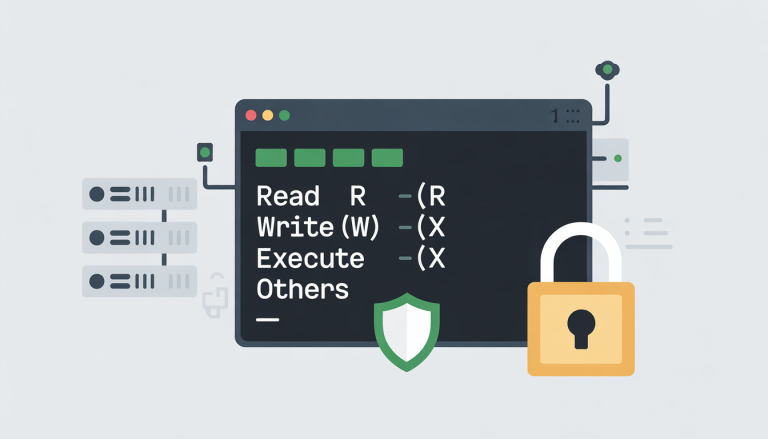
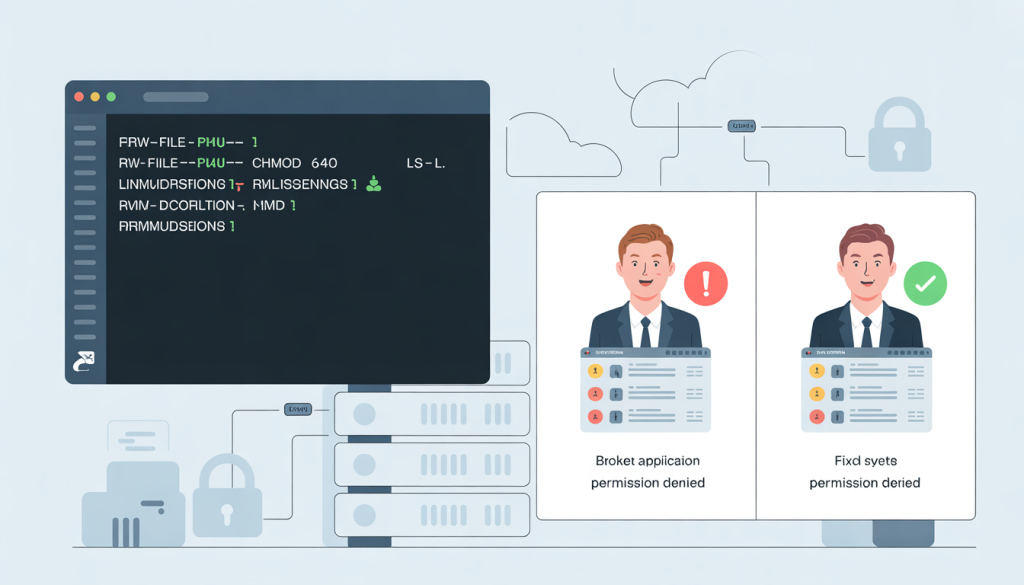
Linux file permissions are typically taught as a straightforward foundational concept—read, write, and execute (rwx) —applied to users, groups, and others. On the surface, it feels straightforward and easy to grasp. However, this simplicity quickly disappears in real-world production environments, where permission-related issues are anything but basic.
In production environments, misconfigured or poorly understood file permissions can lead to a variety of critical issues that are easy to overlook and extremely challenging to troubleshoot. Below are some common problems caused by incorrect file permissions.
- Silent failures
- Partial outages
- Data loss
- Long incident calls where “everything looks fine”
This is why understanding Linux file permissions at a deeper, production-ready level is essential—not just knowing what rwx means, but how permissions interact with processes, services, security policies, and real operational workflows.
In this article, we’ll break down two real-world production case studies where Linux file permissions were the root cause. Each case study walks through:
- What broke in production
- How the issue was detected
- Why it happened
- How was it fixed permanently
- What interviewers expect you to learn from it
Before we move forward and dive into the case studies, if you’re a beginner or new to Linux file permissions, I highly recommend reading my detailed article here.
2. Case 1: Application Running Fine but Logs and Uploads Suddenly Fail After Deployment
Scenario Background
A backend application was deployed on Linux virtual machines operating behind a load balancer, designed to distribute traffic efficiently and ensure high availability. For security and best practices, the application did not run with root privileges; instead, it executed under a dedicated non-root system account to reduce risk and limit system-level access. As part of its normal operation, the application generated runtime and error logs, which were written to a specific directory within the system log path. In addition to logging, the application handled user-generated content, storing uploaded files in a separate data directory mounted on the VM for persistence and scalability.
To avoid disrupting active users and production traffic, a routine deployment was intentionally scheduled during late-night hours. This timing was chosen to minimise user impact, reduce peak load stress, and allow the engineering team to safely roll out changes with lower operational risk. The deployment process itself was considered standard and had been performed successfully multiple times in the past, making it appear low risk at first glance. However, as is often the case in real-world environments, even routine deployments can expose underlying configuration issues—particularly those related to file ownership and permissions—that remain hidden until the application is restarted or new processes are triggered.
Key details:
- Backend application running on Linux VMs behind a load balancer
- Application executed as a non-root user (
appuser) - Logs written to
/var/log/app/ - User uploads are stored in
/data/uploads/ - Deployment scheduled late at night to minimise user impact
What Happened (The Failure)
The deployment initially appeared to complete without any issues. The CI/CD pipeline passed all stages successfully, services restarted cleanly without errors, and load balancer health checks continued to return 200 OK, indicating that the application was up and running. From an operational perspective, everything looked normal, and there were no immediate signs of failure.
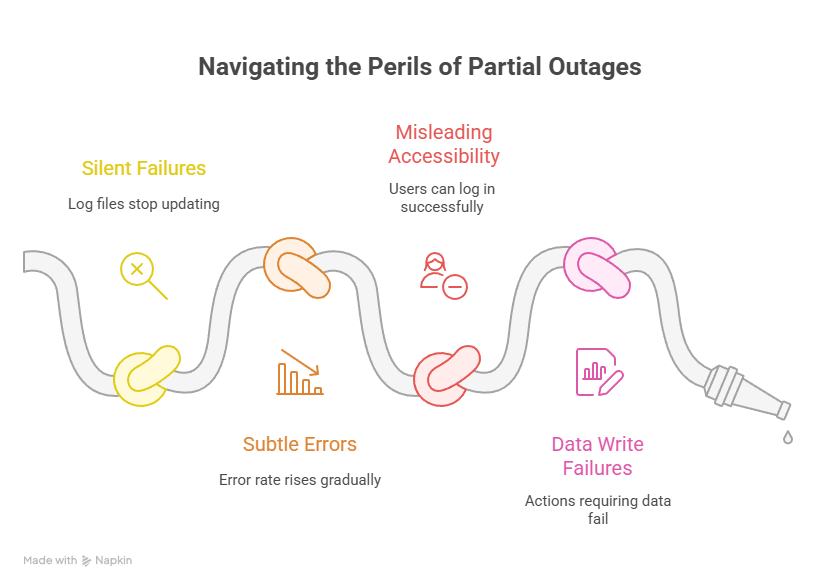
However, within minutes of the deployment, subtle but critical problems began to surface. Log files stopped updating, making it difficult to observe real-time application behaviour. At the same time, user file uploads started failing silently, even though the application remained accessible. Gradually, the application’s error rate began to rise, but not abruptly enough to trigger instant alerts.
Most concerning was the user experience. Users were still able to log in successfully and navigate the application, giving the impression that the system was healthy. However, any action that required writing data—such as uploads, updates, or background processing—consistently failed. This created a dangerous situation: the system was not fully down, but it was no longer functioning correctly.
This was a classic partial outage—far more difficult to detect and diagnose than a complete system crash.
Impact
Impact on Production
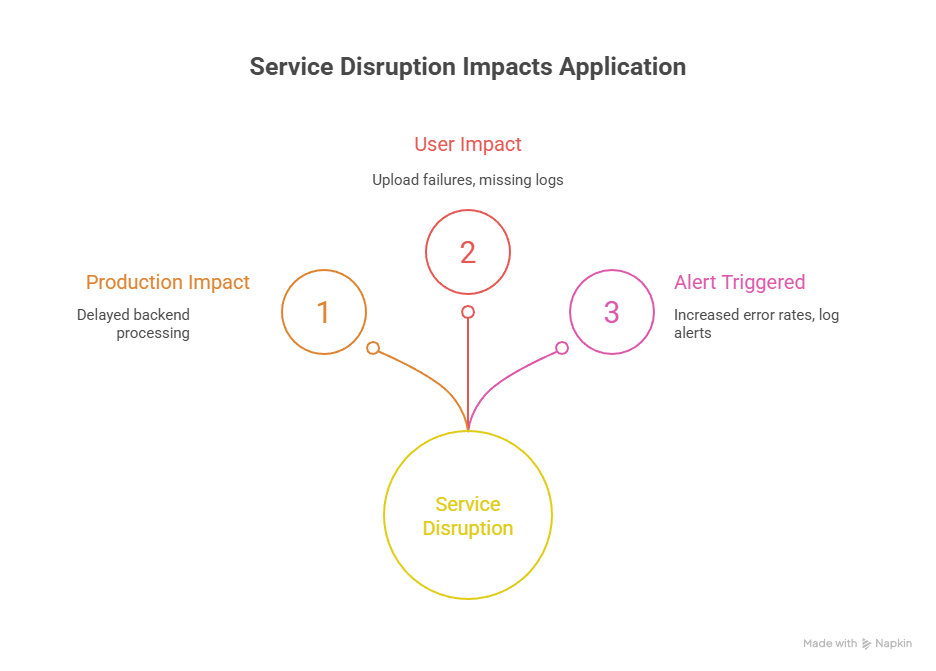
The incident resulted in a partial service disruption rather than a complete outage. Write-related functionality remained broken for approximately 40 minutes, during which the application was unable to process uploads or persist new data, even though it continued to appear online.
User Impact
From the user’s perspective, the application was accessible, but key actions failed. Users encountered repeated upload failures, and activity logs were missing or incomplete, creating confusion and reducing trust in the system’s reliability.
Alert Triggered
Monitoring systems detected abnormal behaviour and raised multiple alerts, including:
- Increased application error rates
- Log ingestion alerts caused by empty or non-updating log files
These alerts signalled that the application was running but not functioning correctly.
Business Impact
The degraded service led to delayed backend processing and operational inefficiencies. As a result, an incident ticket was raised and escalated to address the production issue and restore normal functionality as quickly as possible.
Initial (Wrong) Assumptions
During the first 10 minutes, engineers suspected:
- Application bug
- Disk full issue
- Logging framework failure
However, none of these is true.
Root Cause (What Actually Happened)
The deployment process was executed with root privileges, which introduced an unexpected side effect. During the deployment, critical directories such as the application’s log files and upload paths were re-created, and their ownership was automatically set to root:root. At first glance, the permissions appeared normal and did not raise immediate suspicion. However, the application itself continued running under the appuser account. This mismatch between the file ownership and the user running the application meant that, despite the services being up and healthy, the application no longer had permission to write to its own log and upload directories,
The deployment process was executed with root privileges, which introduced an unexpected side effect. During the deployment, critical directories such as the application’s log files and upload paths were re-created, and their ownership was automatically set to root:root.
At first glance, the permissions appeared normal and did not raise immediate suspicion. However, the application itself continued running under the appuser account. This mismatch between the file ownership and the user running the application meant that, despite the services being up and healthy, the application no longer had permission to write to its own log and upload directories, leading to silent failures and a partial outage.t failures and a partial outage.
How the Issue Was Identified
The turning point came when the team stopped guessing and checked permissions.
Step 1: Check file ownership
ls -l /var/log/app/

#output
-rw-r--r-- 1 root root app.log

#Red flag: owned by root
Step 2: Confirm runtime user
ps aux | grep app

#output
appuser  1234  ... (this is a sample)
Step 3: Validate directory permissions
ls -ld /var/log/app

#Directory permissions did not allow write access for appuser.
How It Was Fixed
We will walk through two different fix approaches: one temporary solution to quickly restore service, and one permanent solution designed as a long-term, reliable fix.
Temporary Fix (Restore Service)
As a temporary fix, the issue was addressed by correcting the file ownership and permissions on the affected directories. The files and folders were reassigned to the appropriate application user, ensuring that the application process had the required read and write access. This quick change immediately restored the ability to write logs and handle file uploads, allowing the service to function normally again. While effective for rapid recovery, this approach was intended only as a short-term solution, as it did not prevent the same permission issue from recurring during future deployments.
chown -R appuser:appgroup /var/log/app /data/uploads
chmod -R 775 /var/log/app /data/uploads
The application immediately resumed normal behaviour.
Permanent Fix (Prevent Recurrence)
The deployment scripts were enhanced to prevent similar issues in the future. They were updated to avoid creating files and directories as the root user, and instead explicitly switch to the application user context before any file creation or modification takes place. Additional permission validation checks were introduced as part of the CI/CD pipeline to ensure correct ownership and access rights before deployments are marked successful. Finally, ownership verification steps were documented in operational runbooks, making it easier for on-call engineers to quickly identify and resolve permission-related issues during incidents.
Interview Takeaway
Interviewers love this scenario because it tests:
- Ownership vs permission understanding
- Deployment awareness
- Debugging mindset
Golden interview line:
“I first check who created the file and which user the application runs as.”
3. Case Study 2: Dockerized Application Fails to Write to Mounted Volume
Scenario Background
A Docker container was deployed with a bind-mounted host directory using the volume mapping -v /data/app:/app/data, allowing the containerized application to read from and write to a persistent location on the host system. This setup was chosen to ensure that application data remained available even if the container was restarted or replaced. From an architectural standpoint, the configuration appeared correct and aligned with common containerization best practices.
For security reasons, the container was intentionally configured to run as a non-root user. Running containers without root privileges helps reduce the blast radius of potential vulnerabilities and prevents unauthorised access to the host system. However, this security measure introduced an important dependency on correct file ownership and permissions at the host level.
Although the container started successfully and the application processes appeared healthy, the non-root user inside the container did not automatically have write access to the mounted host directory. If the host path was owned by root or another user, the containerised application could read files but failed when attempting write operations. This resulted in subtle runtime issues rather than immediate crashes, making the problem difficult to detect early.
This scenario highlights a common pitfall in containerized environments: file-system permissions do not disappear with containers. Host-level ownership and permissions still apply, and when combined with non-root containers, they must be explicitly aligned to ensure reliable application behaviour in production.
What Happened (The Failure)
The container initially appeared to start without any issues, giving the impression that the deployment had succeeded. From the container runtime’s perspective, the startup process completed normally, and no immediate errors were reported at the infrastructure level. However, as soon as the application inside the container attempted to initialize, it encountered a critical failure.
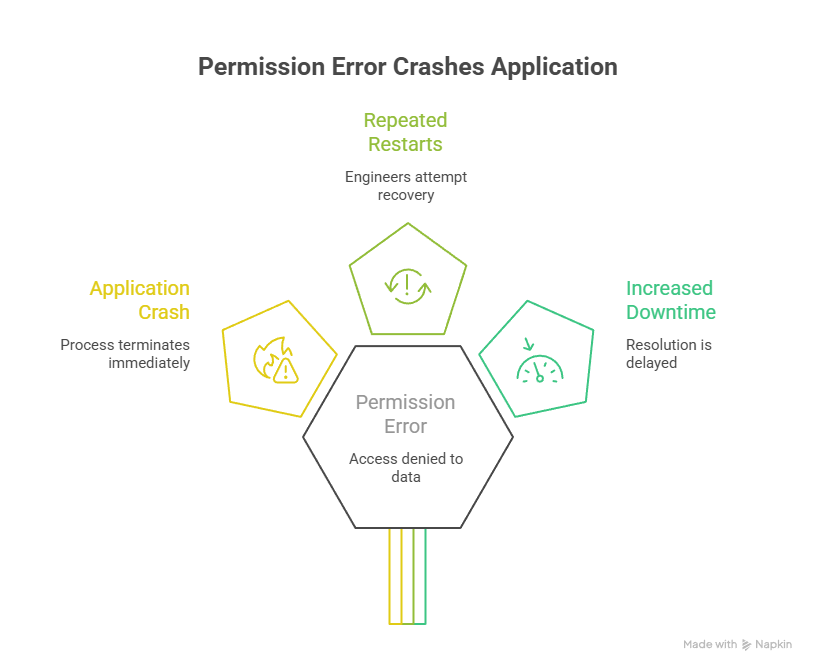
During startup, the application tried to access its data directory located at /app/data, which was mapped to a host-mounted volume. Because the container was running as a non-root user and the underlying host directory did not have the correct ownership or permissions, the application was denied write access. This resulted in a “Permission denied: /app/data” error, causing the application process to crash immediately after launch.
In response, engineers attempted to resolve the issue by restarting the container multiple times, assuming the failure was transient or related to container initialisation. However, each restart reproduced the same error, as the underlying permission problem on the host file system remained unchanged. This led to repeated crashes without progress toward recovery.
This situation demonstrates how permission issues can masquerade as application instability. Without inspecting file ownership and access rights on mounted volumes, repeated restarts only delay resolution and increase downtime, emphasising the need for deeper diagnostics beyond container-level signals.
Imapct
Production Impact
The incident caused a complete service disruption, resulting in approximately 30 minutes of downtime during which the application was unavailable.
User Impact
From a user standpoint, all incoming requests failed, preventing access to the service and halting normal operations.
Alert Triggered
Monitoring systems quickly detected the issue and raised alerts related to the container entering a crash loop, signalling repeated startup failures.
Bussiness Impact
From a business perspective, the outage introduced a risk of breaching service-level agreements (SLAs), increasing operational pressure and the potential for contractual or reputational impact.
Root Cause (What Actually Happened)
The root cause of the issue was a UID/GID mismatch between the host and the container. The host directory was owned by UID 1001, while the container’s application user was running as UID 1000. In Linux, file ownership and permissions are determined solely by numeric user and group IDs, not by usernames. This means that even if the usernames inside the container and on the host appear identical, a mismatch in numeric IDs prevents proper access, leading to permission-denied errors when the application attempts to read from or write to the mounted directory.
How the Issue Was Identified
Step 1: Check host directory ownership
stat /data/appStep 2: Inspect the container user
docker inspect <container> | grep User

# Mismatch confirmed.
How It Was Fixed
To resolve the issue securely, the UID and GID of the container user should be aligned with the host directory ownership, ensuring proper access without compromising security. Alternatively, the container can be run with the correct user mapping to match the host file permissions. It is important to avoid using chmod 777, as this grants unrestricted access and poses serious security risks, making the system vulnerable to unauthorized modifications.
Interview Insight
When discussing container-related permission issues in interviews, it’s important to clarify that these problems are rarely caused by Docker itself. Most permission errors arise from UID/GID mismatches between the host and the container. Linux relies on numeric user and group IDs, not usernames, to enforce file ownership and access rights. If the container user’s UID does not match the host directory’s UID, the application may fail to read or write files, even if the usernames appear identical. Highlighting this distinction demonstrates a strong understanding of container security and filesystem mechanics, which interviewers value more than blaming Docker for such issues.
“Permissions issues in containers are often UID/GID mismatches, not Docker bugs.”
4. Common Patterns Across Case Studies
Here are some common patterns frequently observed in production incidents involving Linux file systems.
- Ownership was ignored
- Automation created files unexpectedly
- Directory permissions were misunderstood
chmod 777was overused
Final Words
In real-world environments, Linux permission issues go far beyond knowing basic commands. The real challenge lies in understanding the context—which user is running the process, which UID/GID owns the files, and how permissions interact with mounted directories or containers. Seemingly simple setups can fail silently if ownership or access rights are misaligned, leading to partial outages, failed uploads, or missing logs.
True production readiness comes from anticipating these scenarios, validating permissions during deployments, and designing secure, context-aware processes. Mastering this context ensures reliability and prevents hidden failures that commands alone cannot resolve.
Always ask:
- Who created the file?
- Who is trying to access it?
- From where (host, cron, container, service)?
If you answer those, the issue usually reveals itself.
Explore my other articles on Cloud and Data for more insights, tips, and tutorials. Stay informed and enhance your skills with practical content designed to boost your knowledge. For serious interview preparation with curated questions and real scenarios, check out my Linux Interview Bundle, designed to help you prepare smarter and crack interviews faster
Happy learning!