Linux File Permissions Explained: Concepts, Scenarios & Best Practices
1. Introduction
Linux file permissions are one of those topics everyone thinks they understand—until a deployment fails, a service refuses to start, or a “harmless” permission change turns into a security incident.
At a surface level, permissions look simple: r, w, x, chmod 755, move on. But in real systems, permissions interact with ownership, directory traversal, default masks, special bits, mounts, services, and security layers. Most production issues don’t happen because engineers don’t know the syntax—they happen because they misunderstand the behaviour.
This article is a complete, end-to-end explanation of Linux file permissions, written from a production and operations perspective. We’ll start from fundamentals, move slowly into deeper mechanics, and then examine real failure scenarios that show how these concepts break in the real world.
2. The Linux Permission Model: What It Is Actually Solving
Linux was built from the ground up with the assumption that it would be used by multiple people simultaneously. It was never intended to be a personal, single-user system where everything runs with full trust. Instead, it assumes shared machines, concurrent logins, and processes that cannot automatically trust each other.
From system services to user applications, Linux expects clear boundaries between who owns resources and who is allowed to access them. This multi-user mindset shapes its security model, ensuring that no single user, application, or process can interfere with or compromise the stability of the entire system. Thus, File permissions are not an afterthought—they are one of the core security boundaries in Linux.
Every file and directory answers three questions:
- Who owns this?
- Who else belongs to the same group?
- What is everyone else allowed to do?
This model is intentionally simple, but simplicity does not mean lack of depth.
2.1 Ownership: The Foundation Most People Skip
Before read, write, or execute permissions are evaluated, Linux first determines who owns the file. Ownership defines which set of permission rules applies to an access request. Without correct ownership, permissions become meaningless, leading to unexpected denials, unsafe access, or services failing in production environments.
Every file has:
- A user owner
- A group owner
ls -l

#output
-rw-r--r-- 1 appuser appgroup 4096 app.conf
This tells us:
- The file is owned by
appuser - The group is
appgroup
Here’s the critical point many people miss:
Linux does not check “who needs access” first.
It checks ownership order: user → group → others.
If you are the owner, group permissions don’t matter.
If you’re not the owner but in the group, others don’t matter.
Understanding this evaluation order is essential when debugging access issues.
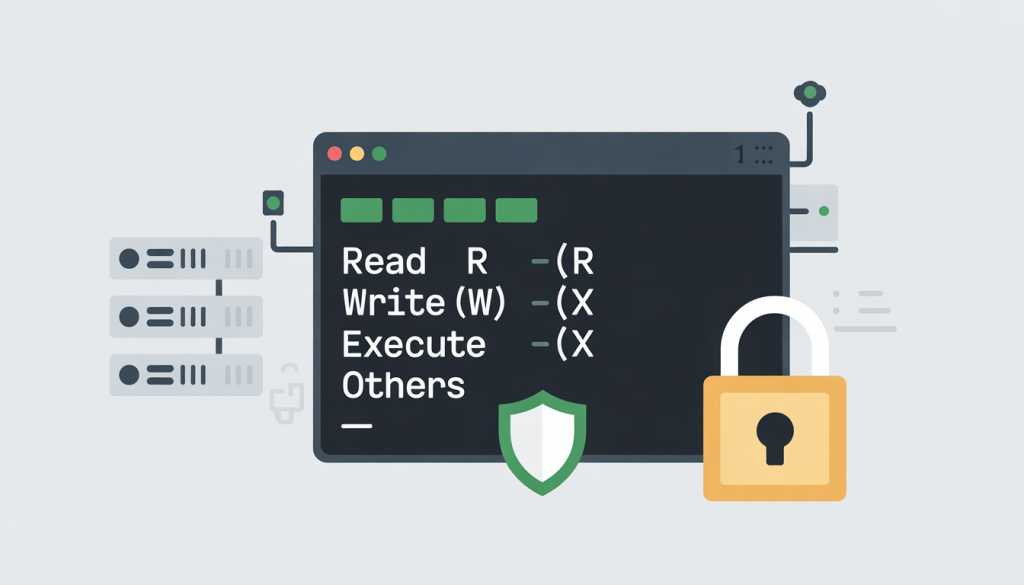
2.2 Read, Write, Execute: Same Letters, Different Meaning
The permission symbols r, w, and x do not have a single universal meaning in Linux; their behaviour changes significantly depending on whether they are applied to a file or a directory. This distinction is subtle but critical, and it frequently causes confusion in real systems.
Even experienced engineers are often caught off guard when a permission setup looks correct on the surface but behaves unexpectedly in practice. Many production issues—ranging from inaccessible files to broken applications—trace back to a misunderstanding of how these same symbols enforce very different rules for accessing files versus traversing directories.
Permissions on Files
For regular files, permissions behave mostly as expected:
- Read (
r) → allows viewing the file’s contents - Write (
w) → allows modifying or truncating the file - Execute (
x) → allows the file to be run as a program or script
TIP: If a script refuses to run and throws
Permission deniedNine times out of ten, the execute bit is missing.
Permissions on Directories (Where Reality Hits)
Directories are not files. Treating them the same way leads to subtle and painful bugs.
For directories:
- Read (
r) → allows listing filenames (ls) - Write (
w) → allows creating or deleting files - Execute (
x) → allows entering the directory and accessing its contents
The execute bit on a directory is often misunderstood. Without it, the directory is effectively sealed—even if file permissions inside look fine.
2.3 Permission Representation: Symbolic vs Numeric (Why Both Exist)
Now let’s look at how Linux represents permissions. The system offers two different formats to express them, each serving a specific purpose. Understanding both representations is important because you will encounter them regularly—whether reading file listings, debugging access issues, or configuring permissions in real-world environments.
Symbolic Permissions (Behavior-Focused)
Symbolic mode is most useful when you want to make deliberate, readable permission changes without relying on numeric values. It allows you to express intent clearly—who should gain or lose access and how—making it safer for adjustments where precision and understanding matter more than memorising numbers.
Examples:
chmod u+x script.sh   # Grants the file owner permission to execute the script
chmod g-w config.yml  # Removes write permission from the file’s group to prevent modifications.
chmod o-r secret.txt  # Revokes read access for all other users, protecting sensitive data
This approach is safer in production because it avoids accidental over-permissioning.
Numeric Permissions (State-Focused)
Numeric mode expresses permissions by directly specifying the final access state for a file or directory. Instead of describing how permissions should change, it defines exactly what they should be. This makes numeric mode ideal for repeatable setups, automation scripts, and configuration management where consistency matters more than readability.
Let’s break down the meaning of numeric permission values using the table below, so you can clearly see how each number maps to its corresponding access rights.
| Number | Meaning |
|---|---|
| 7 | rwx |
| 6 | rw- |
| 5 | r-x |
| 4 | r– |
Common patterns:
755→ executables, binaries644→ config files600→ secrets700→ private directories
Numeric permissions are concise and predictable—but dangerous when used blindly.
Examples:
chmod 755 script.sh  #Owner can execute; group and others can read/execute
chmod 640 config.yml #Owner read/write, group read-only, others no access
chmod 600 secret.txt #Only owner can read/write; no access for others
This shows why numeric mode is explicit: you must decide the final permission state, not just the change
2.4 Ownership vs Permissions: Which One Really Matters?
In real-world Linux systems, file ownership often matters more than the permissions themselves. Permissions are only evaluated in the context of who owns the file and which group it belongs to.
For example, if a service runs as appuser but the files it needs are owned by root, changing permissions with chmod alone will not reliably fix access issues. The proper approach is usually to correct the ownership first and then adjust permissions as needed. This principle is why production environments rely heavily on groups for controlled access rather than granting rights to “others,” which can be risky.
Let’s examine a comparison between the two to gain a clearer understanding.
| Aspect | Ownership-Centric Approach | Permissions-Only Approach |
|---|---|---|
| Primary focus | Who owns the file | The bits set on the file (r/w/x) |
| Common issue | Service runs as wrong user, access denied | Files are readable/writable but inaccessible due to ownership mismatch |
| Correct solution | Fix ownership first, then tighten permissions | Often requires guessing chmod values, error-prone |
| Production usage | Relies on groups for controlled access | Rarely relied upon alone; risky for multi-user systems |
| Safety | Limits access precisely | Can accidentally grant or restrict access if ownership is wrong |
3. umask: The Hidden Default That Shapes Everything
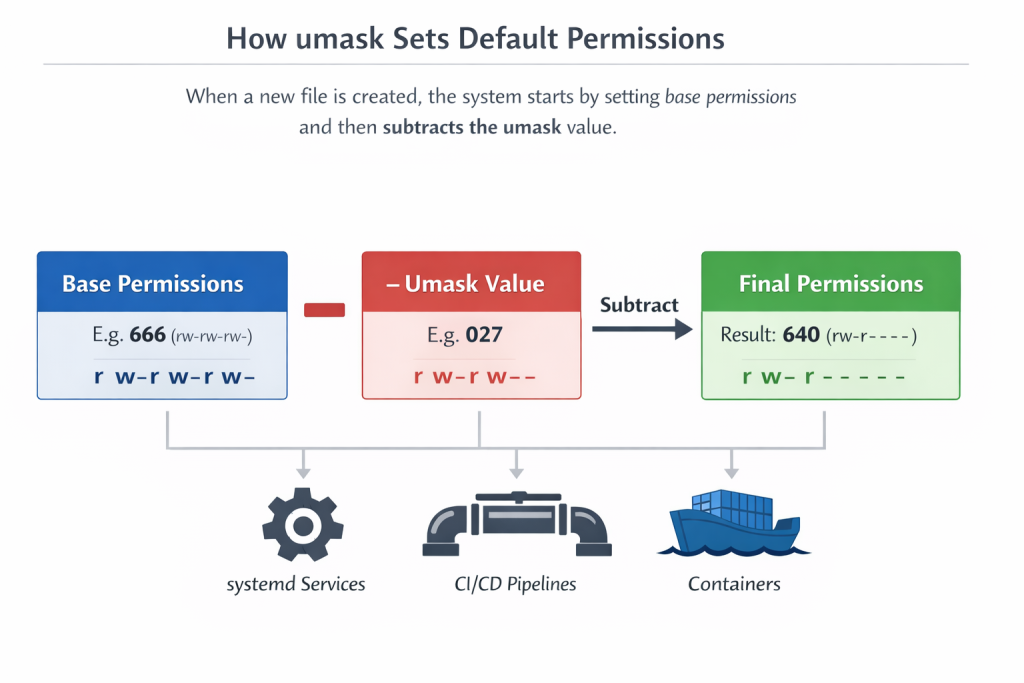
When Linux creates a new file or directory, it does not assign permissions randomly or start from a blank slate. Instead, it begins with a predefined base permission set and then applies the system’s umask to restrict that default.
The umask works by subtracting permissions, not granting them, ensuring newly created files are not overly permissive by default. This mechanism provides a secure starting point while still allowing flexibility.
Understanding this process explains why files and directories often appear with predictable permissions and helps diagnose unexpected access issues in real systems.
Understanding umask is critical because it defines the default permission restrictions applied to every new file or directory. While it might seem like a minor setting, its impact in real-world systems is far-reaching. Any misconfiguration can silently introduce permission issues, causing services to fail, pipelines to break, or sensitive data to be exposed.
Consider the following scenarios where umask plays a key role:
- Services started by systemd: Every service launched inherits the system or service-specific umask. If it is too permissive, log files, sockets, or configuration files may be accessible to unintended users. Conversely, a restrictive umask can prevent services from writing to necessary files, leading to runtime errors.
- CI/CD pipelines: Continuous integration pipelines often create temporary files, logs, and artifacts. They inherit the umask of the environment they run in. A misconfigured umask can cause downstream stages to fail, for example, when a build script cannot write or read certain files.
- Containers: Containers inherit the umask from their base image or entrypoint configuration. Incorrect defaults may create files that cannot be accessed by other processes within the container, causing subtle runtime issues that are hard to debug.
In short, a misconfigured umask doesn’t throw immediate errors. It quietly propagates permission bugs across services, pipelines, and containers, making it a critical setting to understand and manage carefully.
4. Special Permissions: Powerful, Dangerous, Necessary
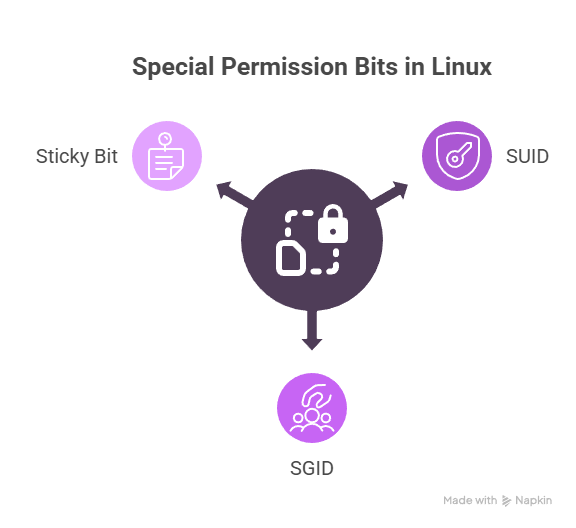
Linux also provides three special permission bits—setuid, setgid, and the sticky bit—that modify how files and directories behave, particularly affecting execution and deletion. These bits add an extra layer of control beyond standard read, write, and execute permissions, enabling more precise management of access and process behaviour.
SUID (Set User ID)
SUID (Set User ID) is a special permission that allows a binary to run with the privileges of the file’s owner rather than the user executing it.
A classic example is /usr/bin/passwd, which lets normal users change their passwords by temporarily gaining the necessary elevated privileges. Without SUID, this operation would be impossible for regular users. While SUID is essential for certain system utilities, misusing it poses a serious security risk, as it can allow unauthorized privilege escalation.
Therefore, its use should be extremely limited and carefully monitored in production environments.
SGID (Set Group ID)
SGID (Set Group ID) behaves differently depending on whether it is applied to a file or a directory.
On directories, SGID ensures that any new files or subdirectories created inside inherit the parent directory’s group rather than the user’s default group. This behaviour is particularly important for shared directories used by teams or applications, as it maintains consistent group ownership and simplifies collaboration.
By automatically aligning group permissions, SGID prevents accidental access issues and ensures that shared resources remain accessible to the intended group without requiring manual adjustments.
Sticky Bit
The Sticky Bit is a special permission that primarily affects directories, preventing users from deleting or renaming files they do not own within that directory.
This ensures that, even on shared systems, multiple users can safely create and manage files without interfering with each other’s data. A common example is the /tmp directory, where many users and processes write temporary files. The sticky bit guarantees that each user can only remove their own files, maintaining system stability and preventing accidental or malicious deletion of others’ data.
5. ACLs: When Traditional Permissions Aren’t Enough
Access Control Lists (ACLs) extend the traditional Linux permission model by adding a finer level of control beyond the standard owner, group, and others framework. While classic permissions work well for many scenarios, they quickly become limiting in complex, multi-user environments where access requirements do not fit neatly into a single group. ACLs solve this problem by allowing explicit permissions to be defined for individual users and additional groups without changing ownership or group assignments.
With ACLs, administrators can grant or restrict access on a per-user basis, create exceptions for specific groups, and precisely control who can read, write, or execute a file or directory. For example, a deployment user can be given full access to an application directory without adding that user to the primary group or loosening permissions for everyone else. This level of precision is especially valuable in large teams and shared systems.
Common commands include getfacl file, which displays all ACL entries applied to a file, and setfacl -m u:deploy:rwx file, which explicitly grants a user full access. In enterprise environments, ACLs are widely used in shared filesystems, CI servers, and production deployments.
However, ACLs are often overlooked during troubleshooting. Engineers see permissions that “look correct” with ls -l, yet access still fails—because ACLs silently override or extend those permissions. This makes ACL awareness essential for effective debugging.
6. Production Case Study
I won’t go into deep detail in this section, as I have already covered the topic thoroughly in a separate blog using two real-world case studies. You can refer to that article through the link below for a detailed breakdown.
Understanding Linux File Permissions: 2 Case Studies
Here, I will instead highlight a concise list of common production failures that occur due to missing or misconfigured file permissions, based on issues frequently seen in real systems.
- Services failing to start after deployment – Applications cannot read configuration files or write PID/log files due to incorrect ownership or restrictive permissions.
- CI/CD pipelines breaking unexpectedly – Build or deployment steps fail because generated artifacts or workspace files are not accessible to subsequent pipeline stages.
- Application logs silently stopping – Log directories are not writable by the service user, causing logging to fail without obvious runtime errors.
- Backups restoring but applications not working -Files are restored with incorrect ownership or directory execute permissions, leading to “Permission denied” errors despite files being present.
- Secrets exposure or access denial – Configuration files containing credentials are either too permissive (readable by others) or too restrictive, blocking the application from starting.
- Containers failing at runtime – Processes inside containers cannot access mounted volumes due to mismatched UID/GID or inherited umask settings.
7. Debugging Permissions Systematically
Debugging permission issues should be approached methodically, not through trial and error. Random permission changes often mask the real problem and introduce security risks. A structured mindset helps isolate the root cause, reduces downtime, and ensures fixes are reliable, repeatable, and safe for production environments.
A reliable approach:
- Check ownership
- Check directory traversal permissions
- Check ACLs
- Check mount options (
noexec,nosuid) - Check security layers (SELinux/AppArmor)
8. Why Linux File Permissions Matter for Interviews and Real Jobs
Linux file permissions matter because they directly influence how systems behave under real workloads, not just in theory. Interviewers use them to assess whether a candidate understands practical Linux fundamentals, while in real jobs they are a common source of outages and security incidents.
They matter because:
- Interviewers test real-world thinking, such as fixing ownership before applying
chmod. - Production services depend on them, especially for reading configs and writing logs.
- Deployment and CI failures often trace back to permissions, not code issues.
- Security boundaries rely on correct permissions, preventing data leaks and privilege escalation.
- Debugging efficiency improves, as experienced engineers recognize permission issues quickly instead of guessing.
Strong permission knowledge signals operational maturity and production readiness.
9. Final Words
Linux file permissions are not difficult to learn, but they are extremely unforgiving in real-world environments. They tend to expose gaps in understanding very quickly, especially when systems behave differently than expected. Permissions reward engineers who understand how Linux thinks—ownership before permissions, directory traversal rules, default umask behaviour, and execution context—rather than those who rely on memorized commands. Once these fundamentals are internalized, permission-related issues stop feeling mysterious and instead become logical, traceable problems.
The fastest way to reach that level of confidence is not through synthetic examples, but by studying real failure scenarios—the kinds that break deployments, stop services from starting, or quietly expose sensitive files. These situations force you to reason about permissions the same way you would in production or during a technical interview.
That’s exactly why I created a Linux interview bundle focused on real-world scenarios and interview-ready explanations. If you want to strengthen both your job readiness and on-the-job skills, you can explore the bundle here: Linux Interview Bundle.