1. Introduction
In this blog, we’ll dive deep into Terraform state best practices and see why they are important to follow for effective infrastructure management. Good state management guarantees stability, security, and collaboration and is therefore a critical part of Terraform usage. Whether you’re new to Terraform state or a beginner, these best practices will guide you away from potential pitfalls and simplify your workflow. In addition, if you are a beginner, I would strongly suggest looking at my extensive blog on Terraform State to get an in-depth idea. Check it out here to understand Terraform state management fully.
2. Why Terraform State Management Matters
Terraform state management is an important aspect of Infrastructure as Code (IaC) that provides accurate tracking, scalability, and team collaboration in infrastructure provisioning. The state file (terraform.tfstate) is a single source of truth that translates Terraform configurations into actual resources in the real world.
Key Reasons
- Drift Detection: It helps identify configuration drifts when infrastructure is modified outside of Terraform, ensuring consistency.
- Efficient Plan & Apply: Terraform caches resource details in the state file, optimizing performance by avoiding redundant API calls.
- Dependency Management: The state file tracks resource dependencies, ensuring that changes are applied in the correct order.
- Collaboration & Team Efficiency: Remote state storage enables teams to share and update infrastructure configurations without conflicts.
- Security & Stability: Proper state management prevents accidental overwrites and allows secure access through encryption and role-based access controls.
Through efficient management of Terraform state, teams are able to improve infrastructure reliability, automate workflows better, and have greater control over cloud environments.
3. Terraform State Best Practices
3.1 Remote State for Production Environments
For production environments, it’s recommended to use remote state storage with Terraform backends like AWS S3, Azure Blob Storage, or HashiCorp Terraform Cloud to enable secure access, state locking, and team collaboration.
Applying local state in Terraform might be suitable for small applications or testing in single user cases, but it is very dangerous for large production scenarios. Local state is kept on one machine, which creates scalability issues, security concerns, and collaboration challenges.
Benefits of Remote State Backends:
Centralized Storage for Teams:
1. Enables seamless collaboration by providing shared access to the latest Terraform state.
2. Eliminates the need for manually sharing or copying state files across team members.
State Locking and Conflict Prevention:
1. Prevents multiple users from making concurrent changes that could corrupt the state.
2. Terraform uses mechanisms like DynamoDB (AWS) or consul for state locking.
Automated Backups and Versioning: Many remote state solutions support automatic state versioning, allowing easy rollback in case of corruption or accidental changes.
Enhanced Security Controls:
1. Supports encryption of state files to protect sensitive infrastructure details.
2. Access control through IAM policies (AWS S3), RBAC (Azure), or GCS permissions (Google Cloud) restricts unauthorized changes.
3.2 Enable State Locking to Prevent Race Conditions
Let’s explore state locking in Terraform, understand its purpose, importance, and learn how to enable it.
3.2.1 What is State Locking?
State locking is a feature in Terraform that disallows multiple users or processes from making simultaneous changes to the Terraform state file. Without state locking, concurrent changes can result in state corruption, conflicts, and infrastructure inconsistencies.
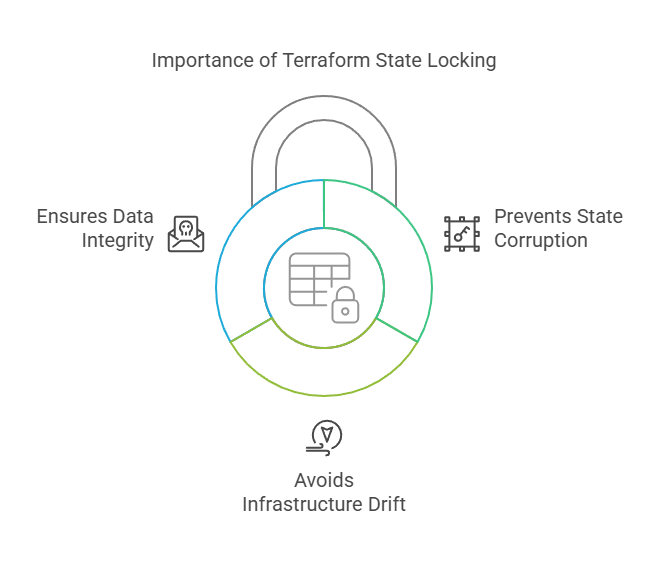
3.2.2 Why State Locking is Important?
- Prevents State Corruption: Ensures only one process can modify the state at a time, reducing conflicts.
- Avoids Infrastructure Drift: Prevents multiple users from applying different changes simultaneously, which can cause discrepancies.
- Ensures Data Integrity: Locks the state file during Terraform operations (plan, apply, destroy) to maintain consistency.
3.2.3 How Terraform Implements State Locking?
Terraform automatically locks the state file when using supported remote backends like:
- AWS S3 with DynamoDB
- Azure Blob Storage with State Locking
- Google Cloud Storage with Locking
- Terraform Cloud (built-in locking mechanism)
now, let’s see an example of the same.
Example: Enabling State Locking in AWS S3
terraform {
  backend "s3" {
    bucket         = "my-terraform-state"
    key            = "infra/terraform.tfstate"
    region         = "us-east-1"
    dynamodb_table = "terraform-lock"
  }
}
In this example, DynamoDB ensures that only one Terraform process can modify the state at a time, preventing conflicts.
I hope state locking is now clear and easy to understand. If you have any questions, feel free to leave a comment, and I’ll be happy to assist you.
3.3 Use Encryption for Storing Sensitive State Data
Terraform state files hold sensitive data like cloud credentials, IP addresses, database passwords, and security group rules. They are a huge security risk if left unencrypted. Encrypting the state file means that no unauthorized user can access or alter sensitive infrastructure data.
Key Benefits of Encrypting Terraform State
- Protects Sensitive Data – Ensures credentials and secrets stored in the state file remain secure.
- Prevents Unauthorized Access – Encryption helps protect state files from data breaches.
- Compliance & Security Standards – Meets industry security requirements (e.g., GDPR, SOC 2, HIPAA).
3.3.1 How to Enable Encryption for Terraform State in AWS S3
When using S3 as a remote backend, you can enable server-side encryption (SSE-KMS) for state file security.
terraform {
  backend "s3" {
    bucket         = "my-terraform-state"
    key            = "infra/terraform.tfstate"
    region         = "us-east-1"
    encrypt        = true   #Enables default encryption for the S3 bucket.
    kms_key_id     = "arn:aws:kms:us-east-1:123456789012:key/my-kms-key"   #Uses AWS KMS (Key Management Service) for additional security.
  }
}
3.4 Regularly Backup State Files to Avoid Accidental Loss
3.4.1 Importance of State Backups
Terraform state files save the current state of infrastructure, which acts as a single source of truth. Losing or corrupting this file can cause serious operational issues, including unintended infrastructure drift, downtime, or even total environment failure. State backups ensure that there is always a restorable version of the infrastructure state available, mitigating these risks.
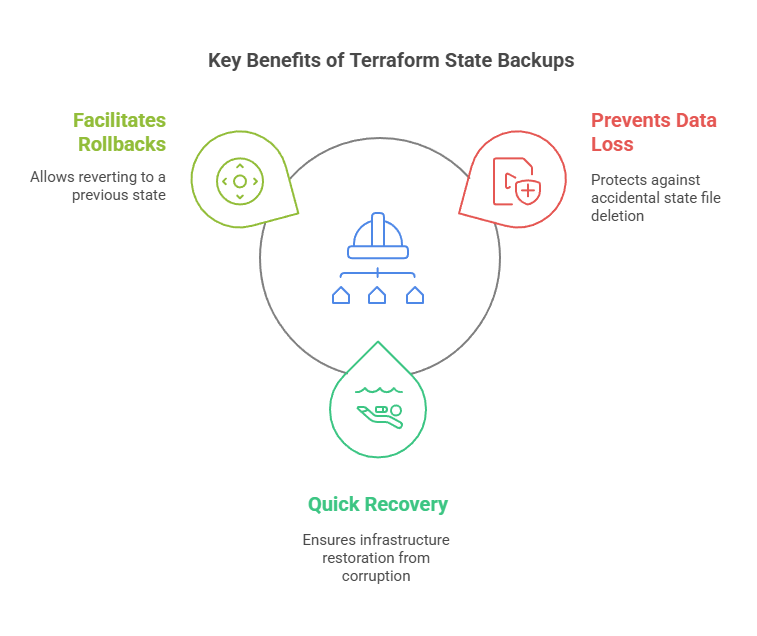
Key Benefits of State Backups
- Prevents Data Loss – Protects against accidental state file deletion.
- Quick Recovery from Corruption – Ensures that infrastructure can be restored if the state file becomes corrupted.
- Facilitates Rollbacks – Allows reverting to a previous state in case of unintended changes.
3.4.2 How to Enable State Backups in Terraform
Most remote backends (e.g., AWS S3, Azure Blob Storage, Google Cloud Storage) offer automatic versioning and backups.
Example: Enabling Versioning for Terraform State in AWS S3
resource "aws_s3_bucket_versioning" "state_versioning" {
  bucket = "my-terraform-state"
  versioning_configuration {
    status = "Enabled"
  }
}
3.5 Restrict Access to Terraform State with Policies
3.5.1 Risks of Publicly Accessible Terraform State
Terraform state files hold sensitive data regarding infrastructure, such as resource configurations, access credentials, API keys, and other security-related information. If the state file is exposed to the public, it is a significant security threat, which can result in:
1.Unauthorized Access – Malicious users can pull secrets and take over cloud resources.
2. Data Breaches – Exposure of sensitive infrastructure information can result in compliance breaches.
3. Infrastructure Manipulation – Malicious users might alter or destroy vital infrastructure.
Example: Restricting Access to an S3 Backend for Terraform State
resource "aws_s3_bucket_policy" "state_policy" {
  bucket = "my-terraform-state"
  policy = jsonencode({
    Statement = [{
      Effect = "Deny"
      Principal = "*"
      Action = "s3:GetObject"
      Resource = "arn:aws:s3:::my-terraform-state/*"
      Condition = {
        Bool = { "aws:SecureTransport" = "false" }
      }
    }]
  })
}
3.5.2 Enforcing Multi-Factor Authentication (MFA) for State Access
It is essential to secure Terraform state, and imposing Multi-Factor Authentication (MFA) provides an additional level of defense against unauthorized access. MFA asks users for a second factor of authentication (like a time-based OTP or hardware key) along with a password, lessening the probability of credential compromise.
For AWS S3 remote state, you can require MFA through IAM policies. This makes sure that only authenticated users with MFA can access or change the Terraform state file.
3.6 Version Control .tf Files, Avoid Committing terraform.tfstate
3.6.1 Why Storing .tf Files in Version Control is Essential
It is a best practice to store Terraform (.tf) files within a version control system (VCS) such as GitHub, GitLab, or Bitbucket to provide trackability, collaboration, and rollback functionality in infrastructure management.
With version control, teams are also able to trace changes to Terraform configurations over time, so it is simple to see what was altered, when, and by whom. It prevents unintended misconfigurations and provides a clean history of modifications. Version control also facilitates smooth collaboration, where several team members can work on infrastructure as code together with an organized review process.
Another significant benefit is the possibility of rolling back to a prior state in case an infrastructure modification introduces unforeseen problems. Because Terraform configurations specify the infrastructure, rolling back to a stable commit can rapidly restore a working environment.
Benefits of Storing .tf Files in Version Control:
- Tracks infrastructure changes over time for auditability.
- Enables collaboration among multiple team members.
- Provides rollback capability in case of issues.
3.6.2 Why You Should Never Commit terraform.tfstate to Git
Checking in the terraform.tfstate file to version control is a severe security threat and can result in data breaches, infrastructure clashes, and security weaknesses. The state file holds confidential data, including cloud resource IDs, secrets, and occasionally even credentials. If this file is checked into Git and made accessible, attackers would be able to access your cloud infrastructure.
Also, Terraform state is updated continuously whenever infrastructure is altered. Keeping it in Git causes merge conflicts whenever there are changes applied by more than one team member at the same time, creating inconsistencies in the infrastructure. Rather than employing version control, Terraform remote backends such as AWS S3, Terraform Cloud, or Azure Storage must be utilized for secure and centralized state storage.
How to Prevent Committing terraform.tfstate
1. Add terraform.tfstate to .gitignore :To ensure the state file is never committed, add it to your .gitignore file:
# Ignore Terraform state files
terraform.tfstate
terraform.tfstate.backup
.terraform/
2. Use Remote State Storage: Instead of storing state locally, configure a remote backend.
terraform {
  backend "s3" {
    bucket = "my-terraform-state"
    key    = "state/terraform.tfstate"
    region = "us-east-1"
    encrypt = true
  }
}
Key Reasons to Avoid Committing terraform.tfstate to Git
- Exposes sensitive data (e.g., credentials, secrets).
- Causes merge conflicts in team environments.
- Leads to security vulnerabilities if stored in a public repo.
By ignoring state files and using remote backends, you ensure secure and efficient Terraform state management.
4. Conclusion
I hope you found this blog valuable and insightful. I’m confident you’ll implement these best practices in your DevOps journey. Now, let’s quickly recap the key points we covered.
- Use remote state for production – Enables collaboration and prevents local data loss.
- Enable state locking – Prevents concurrent modifications that could corrupt the state file.
- Encrypt state files – Protects sensitive infrastructure data.
- Backup state regularly – Prevents data loss from accidental deletions or corruption.
- Restrict access with IAM policies – Ensures only authorized users can access the state file.
- Use version control for .tf files – Tracks infrastructure changes over time.
- Never commit terraform.tfstate to Git – Prevents exposing sensitive infrastructure data.
Following best practices for Terraform state management is essential for maintaining a secure, efficient, and scalable infrastructure. By using above practices you can safeguard your infrastructure against accidental loss. Implementing these best practices will help you build a robust, automated, and secure Terraform workflow, ensuring stability and efficiency in your DevOps processes.
Next Step
Now that you understand terraform state best practices,it’s time to level up your Terraform skills.
- Migrate local state to remote state for better security and collaboration.
- Explore Terraform Workspaces to manage multi-environment deployments efficiently.
- Implement CI/CD for Terraform using GitHub Actions and Terraform Cloud for automated infrastructure provisioning.
- Enhance security and scalability by following best practices for state management.
With the mastering of these steps next, you’ll take your DevOps automation and infrastructure as code (IaC) game even further. Get experimenting immediately and create an end-to-end automated, elastic, and secure cloud infrastructure using Terraform!
We’d love to hear from you! Share your Terraform experiences, challenges, or insights in the comments, and let’s continue the conversation on mastering Infrastructure as Code.
Explore my other articles on DevOps and Cloud for more insights, tips, and tutorials. Stay informed and enhance your skills with practical content designed to boost your knowledge. Happy learning!