1. Introduction
Terraform state management is a foundation of successful Infrastructure as Code. It keeps a record of the current infrastructure state, so Terraform knows how to plan correct changes and make them reliably. Terraform can’t even correlate real-world resources with your configuration without state management, introducing more potential for drift, inconsistencies, and deployment failure. It also facilitates team collaboration by saving infrastructure data in a central place, securely. Capabilities such as remote backends, state locking, and encryption provide secure, reproducible operations in production environments. Essentially, state management is what makes Terraform predictable, reliable, and scalable in real-world infrastructure provisioning and maintenance.
In this blog, we mostly discussed resolving some of the most common issues that arise when working with Terraform state and discussed effective ways to overcome them. From resolving state locking issues to recovering from state corruption, we’ve discussed practical solutions that can assist you in keeping your infrastructure stable and reliable.
This tutorial is aimed at those who already have a basic grasp of Terraform state management, such as understanding state files, state commands, and best practices for safely storing and managing state. If you’re unfamiliar with these or need a refresher, I strongly suggest reviewing the corresponding blogs found on this site by clicking highlight words.
These companion articles will guide you through the basics—what Terraform state is, how it’s formatted, local vs. remote state, and how to work with it in team environments with tools such as S3, DynamoDB, and Terraform Cloud.
By understanding the full ecosystem of Terraform state, you’ll be better equipped to implement robust infrastructure workflows and avoid common pitfalls. So before diving into advanced fixes, make sure you’re well-versed with the basics. Head over to the suggested blogs below to build that strong foundation.
2. Terraform State Problems & How to Fix Them
2.1 State File Corruption
Terraform state can be corrupted by a number of factors, which can have a major effect on infrastructure stability. One of the most common causes is unexpected failures during the running of terraform apply, which can leave the state file in an incomplete or inconsistent state. Failed updates, like network failures while writing to a remote backend, can also result in partial or invalid data. Also, if several automation processes or team members execute Terraform commands in parallel without state locking, conflicting changes can overwrite or corrupt the state. Such situations make it essential to employ remote backends along with state locking and use recovery methods such as backups.
Here are some effective ways to fix and prevent Terraform state file corruption:
- Enable State Locking: Use backends like AWS S3 with DynamoDB to lock the state file and prevent concurrent modifications.
- Regular Backups:Configure automated backups of the state file to restore from the last known good state if corruption occurs.
- Use
terraform state pull:Retrieve the current state file for inspection or manual recovery in case of issues. - Use
terraform state push:Push a corrected or backed-up state file manually to the backend if the original is corrupted. - Avoid Manual Edits: Never edit the state file directly unless absolutely necessary, and always keep a backup before doing so.
- Implement CI/CD Pipelines: Use automation to apply Terraform consistently and avoid ad hoc changes that can introduce errors.
- Monitor Apply Logs: Review logs and outputs during failed runs to catch early signs of corruption and act quickly.
2.2 State File Contains Sensitive Information
Terraform state files may inadvertently hold sensitive information like passwords, API tokens, cloud provider secrets, or database credentials. This is because Terraform persists all managed resource attributes in the state, including any input variables or outputs that have sensitive values. If the files are saved locally or pushed to version control, it’s a serious security threat. Unintentional exposure of state files can result in credential exposures or unauthorized infrastructure access, particularly in team settings where access is not tightly managed.
Here are some effective ways to fix this
- Use the
sensitive = trueattribute for variables and outputs to prevent displaying them in Terraform CLI output. - Store state remotely in secure backends like AWS S3 with encryption enabled.
- Enable encryption at rest and in transit using backend-specific features (e.g., S3 + KMS).
- Restrict access to the state file using IAM policies or ACLs.
- Avoid committing state files to version control systems like Git.
- Regularly audit your state file using
terraform showorterraform state pullto check for leaked secrets.
2.3 Losing the Terraform State File
Loss of the Terraform state file can cause severe issues in Infrastructure as Code processes. Because Terraform relies on the state file to keep track of resources and correlate them with your configuration, losing it means Terraform no longer has any idea what infrastructure it is managing. This can occur through accidental deletion, local disk failure, or failing to enable backups. Without the state file, Terraform could attempt to rebuild available resources or even fail to change things appropriately, causing downtime, duplication, or misconfiguration when used in production environments.
Use below to fix this
- Use remote backends like AWS S3, Azure Blob Storage, or Terraform Cloud to store state safely and centrally.
- Enable automated backups for your state files (e.g., versioning in S3) to allow recovery.
- Avoid storing state locally in production environments—use shared and secure locations instead.
- Set up access control to prevent unauthorized or accidental deletions of state files.
- Download a backup copy regularly using
terraform state pullfor local safekeeping if needed. - If lost, reconstruct resources manually and re-import them using
terraform importto rebuild the state.
2.4 Conflicts Due to Multiple Users Modifying State
When different users or automated build pipelines change the same Terraform state file concurrently, it results in state conflicts and corruption. This generally happens in teams where there’s intense collaboration but not enforced state locking. Uncoordinated terraform apply or terraform plan activities can overwrite changes, causing differences between what’s actually built and what Terraform thinks has been built. Such conflicts heighten the likelihood of failed deployments, drift, or management of resources within production environments.
Here are some effective ways to fix this
- Use remote backends that support state locking (e.g., AWS S3 with DynamoDB, Terraform Cloud).
- Enable state locking to prevent concurrent operations from interfering with each other.
- Communicate changes among team members and avoid applying changes simultaneously.
- Use CI/CD pipelines to centralize deployments and avoid manual runs from multiple machines.
- Monitor lock status in your backend to ensure locks are released properly after each operation.
- Set up clear workflows and ownership for infrastructure changes in collaborative environments.
2.5 Manually Changing Infrastructure Causes Drift
Drift happens when the real infrastructure setup is different from the Terraform state file because of direct changes outside Terraform. For instance, an EC2 instance could be directly changed, a security group rule altered, or a resource deleted using the cloud provider’s web console. Out-of-band changes are not monitored in the Terraform state, and this may result in odd behaviors, failed deployments, or even loss of infrastructure consistency. Drift violates the fundamental principle of Infrastructure as Code by making the system more difficult to manage and audit in the long run.
Below are a few proven methods to address the issue
- Avoid manual changes in cloud consoles; use Terraform for all modifications.
- Run
terraform planregularly to detect drift before applying changes. - Use
terraform refreshto update the state file with the actual infrastructure state. - Enable monitoring or alerting for out-of-band changes using cloud provider tools.
- Educate teams on the risks of manual changes and enforce policy-as-code guardrails.
- Use drift detection tools available in Terraform Cloud or third-party solutions.
2.6 Accidentally Removing Resources from State
Unintentionally deleting resources from the Terraform state file—usually by executing terraform state rm or using state commands incorrectly—can result in serious problems. When a resource is no longer being tracked in the state but remains present in the infrastructure, Terraform acts as though it doesn’t exist. On the subsequent apply, Terraform will try to recreate the resource, possibly leading to data loss or service disruption. This is particularly hazardous for stateful resources such as databases or storage buckets, where re-creation can erase persistent data.
Let’s look at some practical solutions to resolve this.
- Avoid using
terraform state rmunless absolutely necessary and with full understanding. - Backup the state file before making any manual changes.
- Use
terraform importto re-associate existing infrastructure with the state file. - Enable versioned and remote state storage to roll back changes if needed.
- Review plans carefully before applying changes to ensure Terraform isn’t recreating resources unexpectedly.
- Use automation policies or CI/CD pipelines to enforce state safety checks.
2.7 Committing terraform.tfstate to Git
Conmitting the terraform.tfstate file to a Git repo is an operationally and security-risky thing. State file stores a comprehensive map of your infrastructure, with sensitive information like access keys, secrets, IP addresses, and usernames. In case pushed to a public or even a shared private repository, this data would be rather easily exposed, resulting in possible breaches. Also, since the state file is constantly modified, handling its versions using Git may lead to merge conflicts and corrupted state integrity.
Consider these strategies to tackle the problem effectively.
- Add
terraform.tfstateand*.tfstate.*to your.gitignorefile. - Use remote backends like Amazon S3, Azure Blob Storage, or Terraform Cloud for secure state storage.
- Enable encryption and access controls on remote storage to secure sensitive data.
- Store only
.tfconfiguration files in Git for version control and collaboration. - Educate your team about state file sensitivity and best practices for Terraform file management
- Use CI/CD workflows that securely handle the state without exposing it in version control.
3. Conclusion
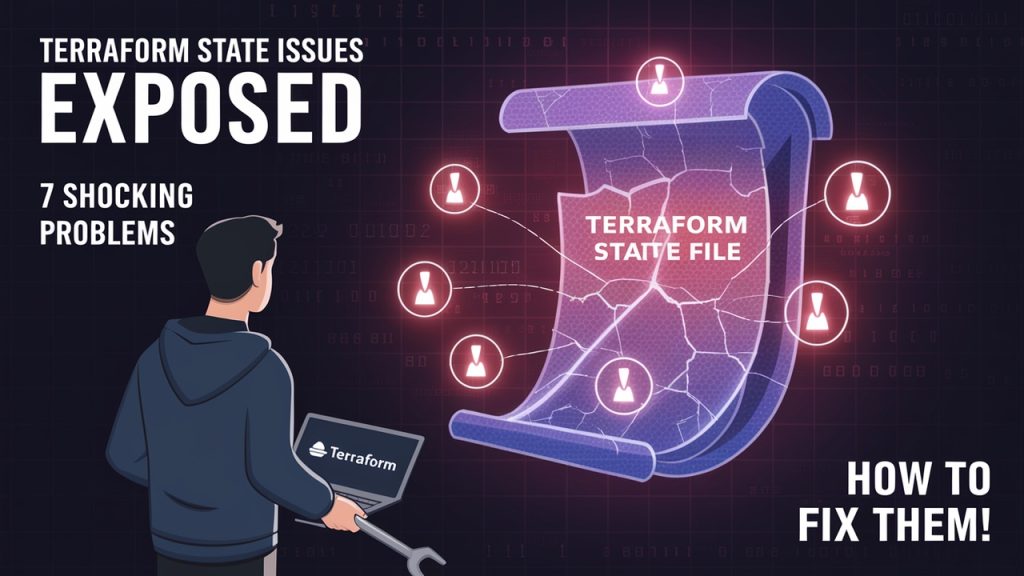
Managing Terraform state effectively is not just a best practice—it’s a critical component of maintaining reliable, secure, and scalable infrastructure as code. Throughout this guide, we’ve explored the 7 most common Terraform state issues, ranging from state corruption to accidental deletions and improper version control. By understanding the root causes and implementing proactive solutions, teams can avoid unnecessary downtime, reduce the risk of security breaches, and ensure consistent deployments. Conquering state handling enables teams to safely work together, audit changes correctly, and scale their infrastructure with confidence. It’s time to bring these best practices into your workflow.
Recap: 7 Major Terraform State Issues & Fixes
- State file contains sensitive info → Encrypt and restrict access.
- Losing the state file → Use remote storage with versioning.
- Conflicts from multiple users → Enable state locking.
- Manual infrastructure changes → Enforce infrastructure as code.
- Accidental state removal → Backup state files regularly.
- State drift → Run
terraform planregularly to detect issues. - Committing
terraform.tfstateto Git → Add to.gitignore.
Why It Matters
- Saves time by preventing tedious recovery.
- Prevents outages due to inconsistent infrastructure.
- Enhances security by securing sensitive state data.
Next Step
As you proceed with your Terraform journey, there are a couple of critical next steps that will greatly improve your workflow and infrastructure management. Begin by moving your local state to remote backends such as AWS S3, which not only provides centralized and secure storage but also team collaboration support and state loss avoidance. Combine it with DynamoDB to unlock the state and prevent the problem of concurrent modification. Secondly, navigate Terraform Workspaces to effectively manage several environments—development, staging, and production—in a single configuration, eliminating redundancy and enhancing readability. Lastly, advance your infrastructure management by automating Terraform workflows through CI/CD pipelines with GitHub Actions, GitLab CI, or Terraform Cloud. This helps simplify deployments, applies approvals, automates testing, and stores state files securely. Adopting these practices will prepare your infrastructure for scalability, security, and long-term maintainability.
We’d love to hear from you! Share your Terraform experiences, challenges, or insights in the comments, and let’s continue the conversation on mastering Infrastructure as Code.
Explore my other articles on DevOps and Cloud for more insights, tips, and tutorials. Stay informed and enhance your skills with practical content designed to boost your knowledge. Happy learning!